Best ZoomIt Alternative for Modern Screen Annotation

ZoomIt has been a reliable tool for years. It was built by Mark Russinovich at Microsoft, it is part of the Sysinternals suite, and it does a handful of things well: zoom into areas of the screen, draw quick annotations, and run a countdown timer during presentations. If you have used it, you know the keyboard driven workflow. Ctrl+1 to zoom. Ctrl+2 to draw. Ctrl+3 for the timer.
But ZoomIt was designed in a different era of screen sharing. It works, and it works reliably, but its interface assumes you are comfortable with keyboard shortcuts and that your main need is zooming, not drawing. For people who spend more time annotating than zooming, the balance feels off.
This guide looks at what makes ZoomIt valuable, where it falls short for modern annotation needs, and why Penslide is a practical alternative if you need a tool that prioritizes drawing and highlighting over zooming.
What ZoomIt Does Well
ZoomIt deserves credit for what it gets right. Understanding its strengths helps you decide whether a different tool actually serves you better.
Screen Zoom
The zoom feature is ZoomIt's signature. You press Ctrl+1, and a portion of the screen magnifies. This is invaluable when you are presenting code, small text, or detailed diagrams to an audience that cannot read fine print on a shared screen. The zoom is smooth and instant.
Lightweight and Portable
ZoomIt is a small utility. It does not require installation in the traditional sense; you can run it from a folder. It sits in the system tray and uses minimal resources. For a tool from the Sysinternals suite, the simplicity is expected and appreciated.
Countdown Timer
The built in timer is useful for workshops, training sessions, and conference talks. You set a countdown, and it displays on screen. When the timer runs out, the audience knows the break is over or the exercise is finished.
Free and Trusted
ZoomIt is free, maintained by Microsoft, and has a long track record. It is the kind of tool you recommend without worrying about reliability or hidden costs.
Where ZoomIt Falls Short for Annotation
ZoomIt's annotation features exist, but they are secondary to the zoom function. If annotation is your primary need, here is where the tool starts to feel limiting.
Keyboard Driven Interface
ZoomIt does not have a visual toolbar for annotation. You activate drawing mode with Ctrl+2, choose colors with keyboard shortcuts, and manage strokes through key combinations. For users who prefer clicking a pen icon and selecting a color from a visual palette, this workflow feels unintuitive.
Some people thrive with keyboard shortcuts. But if you are mid-presentation and you forget the shortcut for changing pen color, you end up fumbling. A visual toolbar eliminates that problem because the options are always visible.
No Persistent Toolbar
When you enter ZoomIt's draw mode, you are in a full screen annotation state. You draw, and then you exit. There is no floating toolbar that stays on screen while you present. You switch between presenting and annotating, rather than doing both simultaneously.
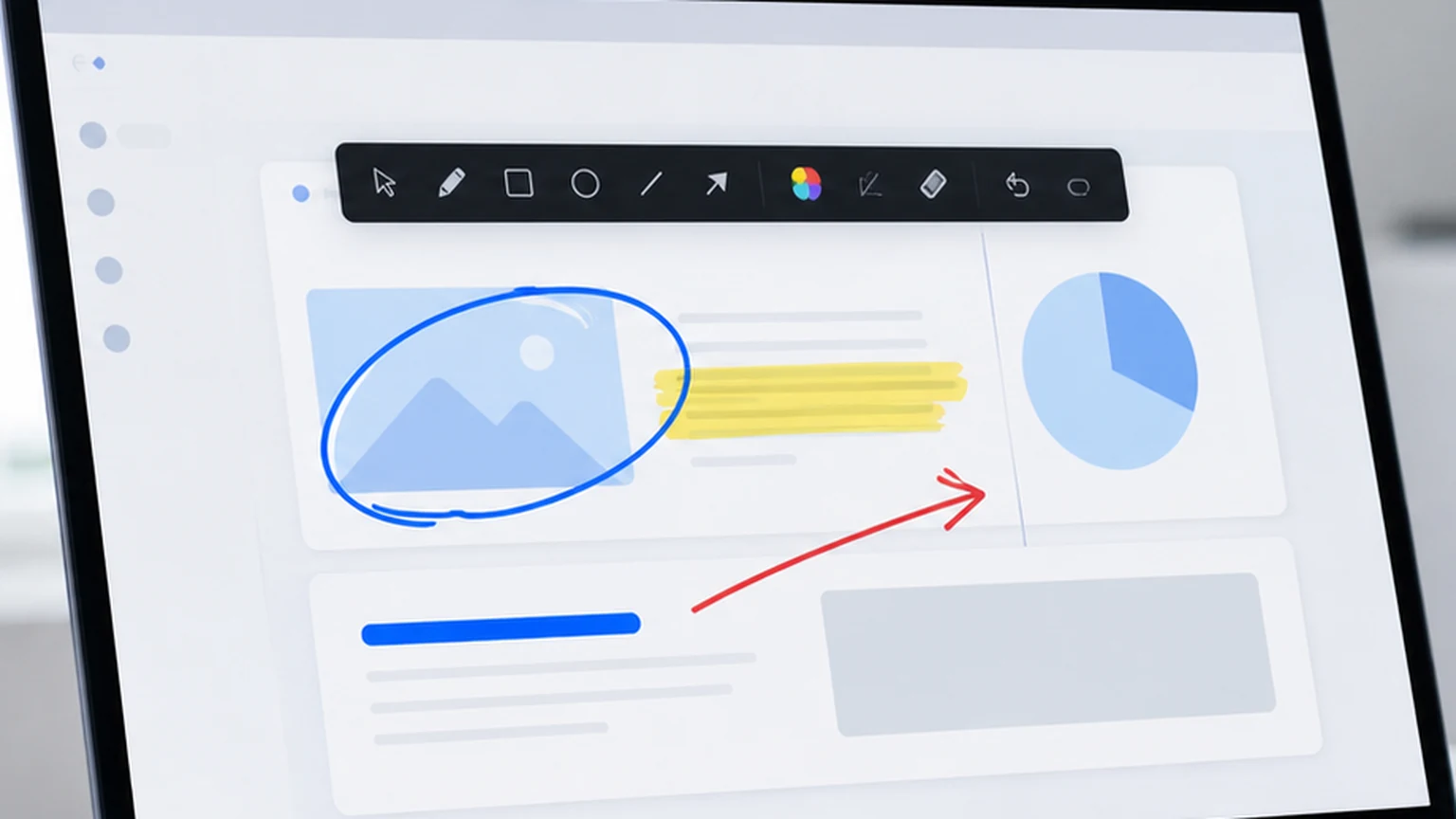
Penslide takes the opposite approach. The toolbar stays on screen permanently. You click the pen, draw a mark, and continue presenting without changing modes. The transition between presenting and annotating is seamless because there is no transition.
Limited Drawing Tools
ZoomIt offers basic pen drawing in its annotation mode. It does not have a dedicated highlighter, a color picker with visual feedback, or a one click clear function. For quick marks during a presentation, the basics work. For sustained annotation during a training session or support call, you want more control.
Tied to Zoom Functionality
ZoomIt's name tells you its priority. The tool was designed for zooming into screen content, with annotation as a secondary feature. If you zoom more than you annotate, ZoomIt is the right tool. If you annotate more than you zoom, you are using a zoom tool for an annotation job.
How Penslide Approaches Annotation Differently
Penslide is built from the ground up for screen annotation. It does not include a zoom feature or a countdown timer. What it does include is a focused set of drawing tools designed for live markup during meetings, teaching, and support.
Visual Toolbar
Penslide shows a compact floating toolbar at the edge of your screen. The toolbar displays the pen, highlighter, color picker, undo, clear, and screenshot tools. You click the tool you want. No keyboard shortcuts to memorize; no hidden menus to discover.
Always Available
The toolbar stays on screen while you present. You do not enter and exit annotation modes. You just click the pen when you want to draw and continue your presentation. The tool is always one click away.
Highlighter Mode
Penslide includes a proper highlighter with semi transparent strokes. This is useful for emphasizing text, data rows, and paragraphs without covering them. ZoomIt's pen is solid colored, which works for shapes but not for text emphasis.
One Click Clear
When you are done annotating a point, click clear and all marks disappear. You do not need to exit a mode or press a key combination. One click, clean screen, next topic.
Portable and Free
Like ZoomIt, Penslide is portable and free. It runs from a single .exe file with no installer. You download it from the download page and it works on any Windows 10 or 11 machine immediately.
Side by Side Comparison
Here is how the two tools compare across the features that matter for annotation work.
ZoomIt offers screen zoom, pen annotation, and a countdown timer. It uses keyboard shortcuts for all controls. It is free and portable. It does not have a visual toolbar, a highlighter mode, or a one click clear function.
Penslide offers pen annotation, highlighter mode, color selection, undo, clear, and screenshot capture. It uses a visual toolbar. It is free and portable. It does not have a zoom feature or a countdown timer.
If zoom is your primary need and annotation is secondary, ZoomIt is still the better choice. If annotation is your primary need and you want a visual interface, Penslide is the better fit.
Who Should Switch from ZoomIt
Not everyone needs to switch. ZoomIt is a good tool, and if your workflow revolves around zooming into screen details, it serves that purpose well. But certain users will find Penslide more practical.
Teachers and Trainers
If you annotate frequently during lessons, a visual toolbar reduces the cognitive load. You can focus on teaching instead of remembering keyboard shortcuts. The presentation annotation tool guide covers this workflow in detail.
Support Technicians
Support calls require fast, clear annotation. Circling a button, highlighting a setting, drawing an arrow from one menu to another. These tasks are easier with a visual toolbar than with keyboard shortcuts, especially when you are also talking to a customer. See the remote support annotation guide.
Meeting Presenters
If you share your screen in meetings and use annotation to direct attention, the visual toolbar and highlighter mode in Penslide give you more control than ZoomIt's keyboard driven approach. The presentation annotation guide has more on this.
Users Who Dislike Keyboard Shortcuts
This is a matter of preference, not ability. Some people prefer visual interfaces over keyboard commands. If you fall into this group, Penslide's toolbar first approach is a better match.
Making the Transition
If you decide to try Penslide as your ZoomIt alternative, the transition is simple.
- Download Penslide from the download page.
- Place the file in the same folder or location where you keep ZoomIt.
- Try using Penslide in your next meeting or training session.
- Keep ZoomIt available for situations where you need the zoom feature.
The two tools do not conflict. You can have both available and use whichever one fits the situation. Over time, you will develop a sense of when you need zoom and when you need annotation, and you will reach for the right tool automatically.
What About Other Alternatives
ZoomIt and Penslide are not the only options. Epic Pen is another popular annotation tool, though its free version has limitations. The Epic Pen alternative guide covers that comparison. For a broader look at Windows annotation tools, see the desktop annotation software guide.
The right choice depends on your workflow. If you zoom frequently, keep ZoomIt. If you annotate frequently and want a visual interface, try Penslide. If you need advanced features like cloud sync or team collaboration, you will need a different category of tool entirely.
FAQ
Is Penslide free like ZoomIt?
Yes. Penslide is completely free with no feature restrictions, no trial period, and no upgrade prompts. It is portable and runs from a single file, similar to ZoomIt.
Does Penslide have a zoom feature?
No. Penslide focuses on annotation: drawing, highlighting, and screen capture. If you need zoom, ZoomIt or Windows Magnifier are better options. You can use both tools side by side.
Can I use Penslide with keyboard shortcuts?
Penslide supports keyboard shortcuts for common actions like undo and clear. The primary interface is a visual toolbar, but you can use shortcuts if you prefer them for specific actions.
Will switching from ZoomIt to Penslide take long to learn?
No. The toolbar is self explanatory. You click the pen to draw, the highlighter to highlight, and the clear button to clean up. Most users are comfortable within the first two minutes.
Conclusion
ZoomIt is a solid tool that has earned its reputation. But it was built for a workflow where zooming is the main task and annotation is a secondary feature. For users who annotate more than they zoom, a tool designed specifically for annotation is a better fit.
Penslide provides that focused annotation experience: a visual toolbar, a proper highlighter, one click clear, and a portable design that works on any Windows machine. It does not try to replace ZoomIt's zoom feature. It replaces the need to use a zoom tool when what you really want is a drawing tool.
Get Started
Download Penslide from the download page and test it alongside ZoomIt. Visit the homepage for the full product overview and feature list. If you are exploring more options, the free screen annotation tool guide compares several tools in one place.
Use Penslide with the next screen share
Open Penslide, point to the part of your screen you need, and draw in a way that keeps the audience on the same page. It works with slide decks, browser windows, and shared apps.