Looking for an Epic Pen Alternative That Feels Cleaner
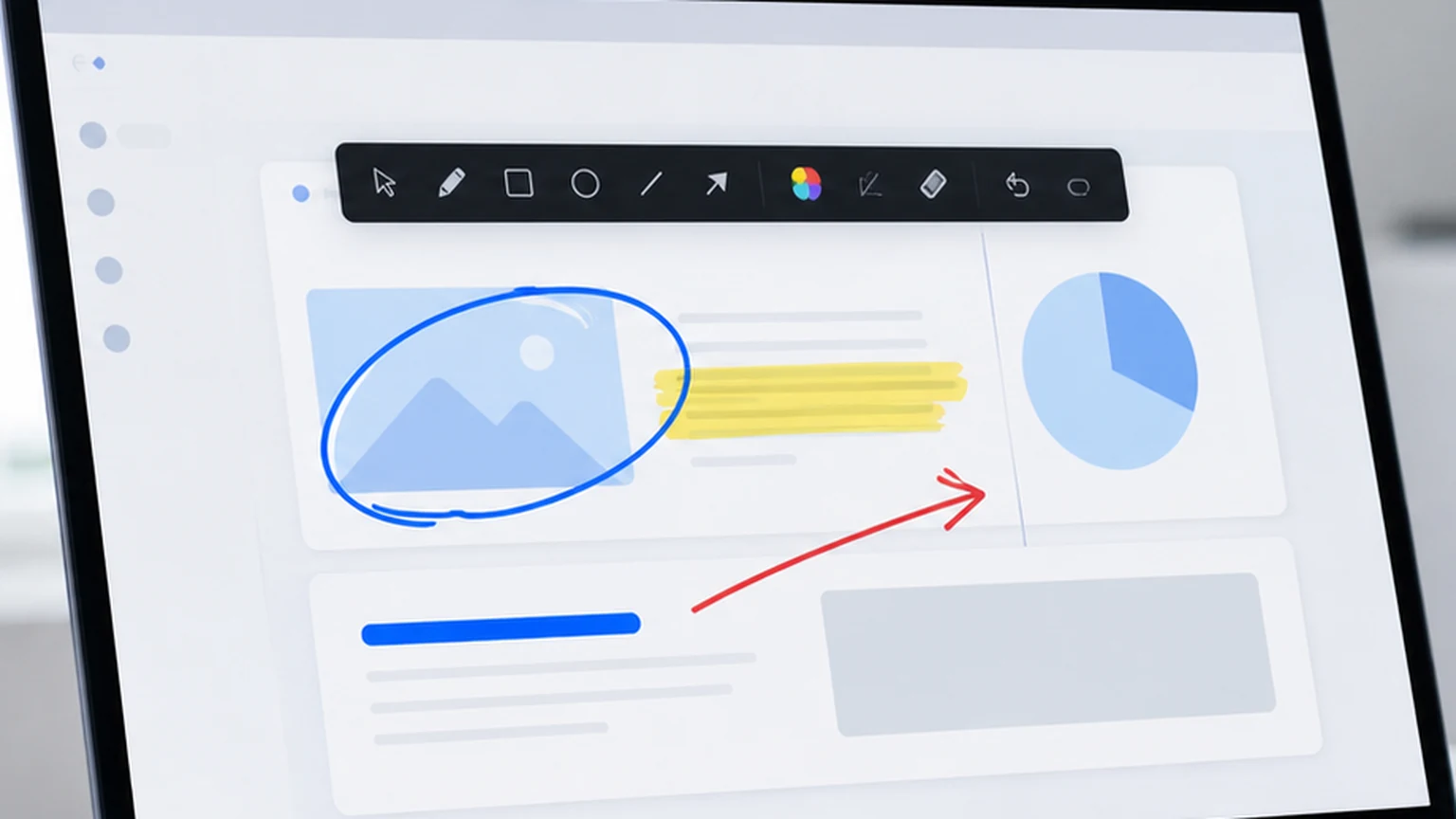
Epic Pen is one of the most well known screen annotation tools on Windows. It has been around for years, it has a recognizable interface, and it does what it promises: let you draw on your screen. A lot of people start with Epic Pen because it shows up near the top of search results and it has a free tier.
But after using it for a while, some users start noticing things. The free version limits features. The interface carries more visual weight than necessary. Upgrade prompts appear at inconvenient moments. The toolbar, while functional, feels larger than it needs to be for a tool whose entire job is putting lines on a screen.
If that experience sounds familiar, this guide is for you. It covers what Epic Pen does well, what feels cluttered about the experience, and why Penslide is an alternative that takes a cleaner, simpler approach to the same task.
What Epic Pen Gets Right
Credit where it is due. Epic Pen is a capable tool, and understanding its strengths helps frame what a good alternative needs to match.
Broad Feature Set
Epic Pen offers pen drawing, highlighting, shapes, text insertion, screen capture, and in its paid versions, video recording and additional tools. For users who want a single app that handles annotation, capture, and recording, this breadth is appealing.
Active Development
Epic Pen is actively maintained with regular updates. The developer adds features, fixes bugs, and keeps the tool compatible with new versions of Windows. This matters for long term reliability.
Name Recognition
Epic Pen is one of the first tools people find when searching for screen annotation software. Its name recognition means it has a large user base, plenty of tutorials, and community familiarity.
Where Epic Pen Feels Cluttered
For users whose needs are straightforward, some of Epic Pen's design choices add friction instead of value.
Free Version Limitations
Epic Pen's free version restricts certain features and shows prompts encouraging you to upgrade. In the middle of a presentation, an upgrade prompt is distracting. In a support call, it looks unprofessional. Free should mean free to use without interruption, not free with reminders about what you are missing.
Toolbar Size
The Epic Pen toolbar is visually prominent. It occupies more screen space than a tool strip needs to, especially on smaller displays or when you are sharing a screen where every pixel of content matters. The toolbar is designed to showcase all available tools, but for users who only need a pen and a highlighter, most of those tools are irrelevant.
Feature Density
Shape tools, text boxes, image stamps, and other features add options to the interface. Each option is another button to scan past when you are looking for the pen. For power users, this variety is useful. For people who open an annotation tool to draw a quick circle, it creates unnecessary cognitive load.
Installation Process
Epic Pen uses a standard Windows installer. You download the setup file, run it, click through the wizard, and the tool installs to your system. This is fine for a personal machine, but on work laptops with restricted admin rights, an installer is a barrier. You cannot use the tool until IT approves and installs it.
What a Cleaner Alternative Looks Like
If you strip screen annotation down to its core purpose, you get a short list of requirements. A tool that meets these requirements without adding unnecessary extras feels cleaner by design.
Portable Execution
No installer. No setup wizard. No admin rights required. You download one file, open it, and the tool is ready. Penslide runs from a single .exe that you can keep on your desktop, in a project folder, or on a USB drive. Moving it to a different machine means copying one file.
Compact Toolbar
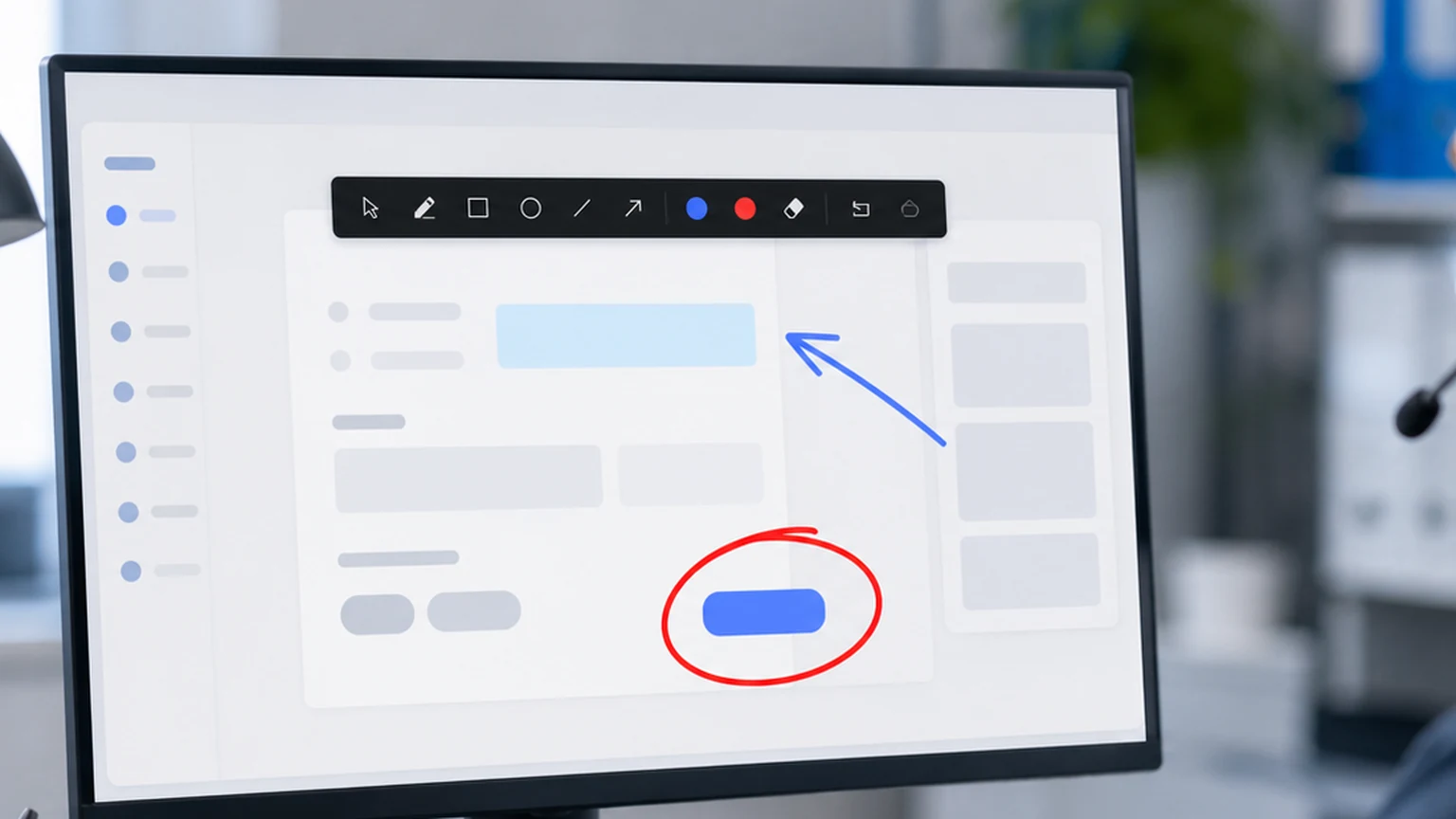
The toolbar should show only the tools you use during annotation: pen, highlighter, color picker, undo, clear, and screenshot. No shape libraries, no text insertion, no image stamps. If you need those features, you are looking for a design tool, not an annotation tool. Penslide's toolbar fits in a narrow strip at the screen edge.
No Upgrade Prompts
Penslide is free. Not "free tier with premium upsell" free. Actually free. There are no feature locks, no subscription tiers, and no prompts asking you to pay. The tool you download is the full tool. Every feature is available from the start.
Low Visual Noise
A cleaner tool means a quieter interface. No logos on the toolbar, no animations, no tooltips that appear when you hover over things you already understand. The interface should be forgettable. You should notice your annotations, not the software that made them.
Practical Comparison: Epic Pen vs. Penslide
Here is how the two tools compare in the situations where annotation is actually used.
During a Meeting
You need to circle a metric on a dashboard and highlight a row in a spreadsheet. With Epic Pen, you click through the toolbar to find the pen, draw your circle, then switch to the highlighter. The toolbar is visible on the shared screen, taking up space. With Penslide, the compact toolbar sits at the edge. You click pen, circle, click highlighter, highlight. The toolbar is barely noticeable in the screen share.
During a Training Session
You are walking someone through a software tool, switching between a slide deck and a live demo. With Epic Pen, the annotation tools work, but the toolbar competes with the content for screen attention. With Penslide, the toolbar collapses when you do not need it and expands with one click when you do. The trainee focuses on the content, not the annotation tool.
On a Restricted Work Laptop
Your IT department has not approved Epic Pen for installation. You cannot run the installer without admin rights. With Penslide, you download the .exe from the download page, double click it, and start annotating. No installation, no admin rights, no IT ticket. The portable annotation tool guide explains why this matters.
On a Customer Facing Call
Professionalism matters. An upgrade prompt or a branded toolbar makes the call feel less polished. Penslide shows a clean, minimal toolbar with no branding and no interruptions. The customer sees your content and your annotations, nothing else.
Who Should Consider Switching
Epic Pen is a good tool for its target audience. If you use shape tools, text insertion, and video recording regularly, Epic Pen's feature set is worth the interface complexity. Do not switch if you actively use those features.
But if your annotation workflow is simpler, here are the signs that Penslide might be a better fit.
- You only use the pen and highlighter. The other tools in Epic Pen's toolbar go untouched.
- The upgrade prompts bother you during presentations or calls.
- You want a portable tool that works on any Windows machine without installation.
- You want a smaller toolbar that does not compete with your screen content.
- You share your screen frequently and want the annotation tool to be as invisible as possible.
If two or more of those apply, Penslide is worth trying.
How to Try Penslide Alongside Epic Pen
You do not need to uninstall Epic Pen to try Penslide. Both tools can exist on the same machine.
- Download Penslide from the download page.
- Save the file in a convenient location.
- Use Penslide for your next meeting or training session.
- Compare the experience. Is the toolbar less distracting? Is the workflow faster?
- Keep whichever tool fits your workflow better.
Most users who try both side by side form a preference quickly. The annotation basics are the same; the difference is in how the tool feels while you use it.
Beyond Epic Pen: Other Alternatives
If you are exploring options, ZoomIt is another tool worth considering. It focuses more on zoom than annotation, but it is free and lightweight. The ZoomIt alternative guide covers that comparison. For a broader overview of free tools, see the free screen annotation tool guide.
FAQ
Is Penslide completely free?
Yes. There are no paid tiers, no feature restrictions, and no upgrade prompts. Every feature in Penslide is available from the moment you open the app.
Can Penslide do everything Epic Pen does?
No. Penslide focuses on core annotation: pen, highlighter, undo, clear, and screenshot. It does not include shape tools, text insertion, or video recording. If you need those features, Epic Pen or a design tool is a better choice.
Does Penslide require installation?
No. Penslide is a single portable .exe file. You download it and run it. There is no installer, no setup wizard, and no admin rights required.
Can I use both Epic Pen and Penslide on the same computer?
Yes. The two tools do not conflict. You can have both available and use whichever one fits the situation. Try Penslide alongside Epic Pen to see which workflow you prefer.
Conclusion
Epic Pen is a solid annotation tool with a wide feature set. But for users who want a simpler, cleaner experience, its toolbar feels heavy and its free tier feels restrictive. Penslide takes the opposite approach: fewer features, a smaller toolbar, no upgrade prompts, and a portable design that works on any Windows machine.
If your annotation needs come down to drawing, highlighting, and clearing marks during meetings and presentations, Penslide gives you everything you need without the extras you do not. That is what a cleaner alternative looks like.
Get Started
Download Penslide from the download page and see how it compares. Visit the homepage for the product overview and features. For more on lightweight annotation tools, read the desktop annotation software guide.
Use Penslide with the next screen share
Open Penslide, point to the part of your screen you need, and draw in a way that keeps the audience on the same page. It works with slide decks, browser windows, and shared apps.