Why Screen Annotation Makes Remote Support Much Easier
Remote support calls have a fundamental problem. The technician knows exactly where the customer needs to click, but the customer cannot see the technician's hands. So the technician describes the location in words: "Go to the menu at the top, then click Settings, then scroll down to the section labeled Advanced." The customer hears the words, looks at the screen, and clicks something wrong. The technician says, "No, the other one." And the call gets longer.
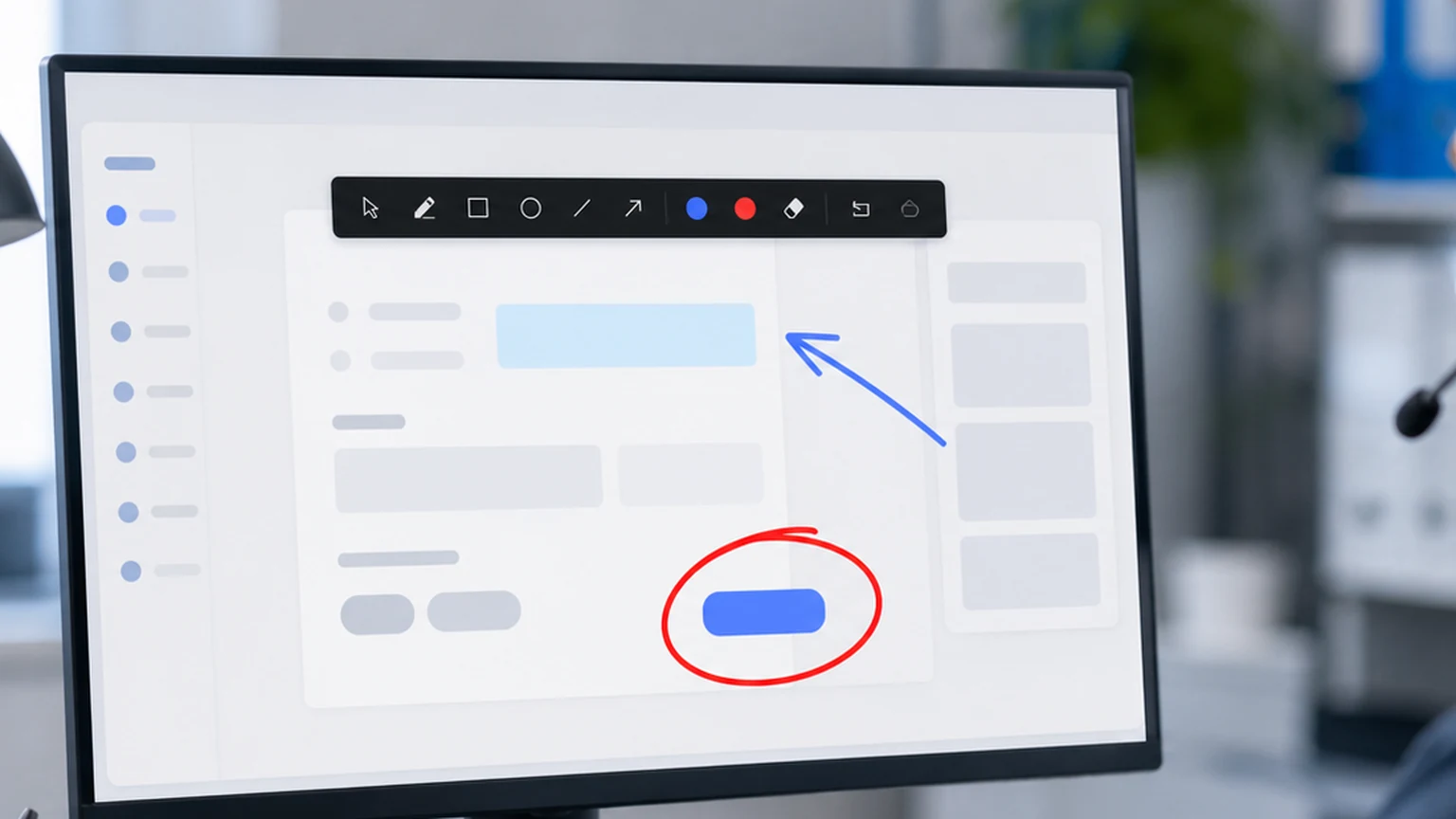
Screen annotation changes the entire dynamic. Instead of describing where to click, the technician draws a circle around the button. Instead of saying which section to scroll to, the technician highlights it. The customer follows visual marks instead of interpreting verbal directions. The call gets shorter, the resolution is faster, and both sides feel less frustrated.
This guide covers why screen annotation makes remote support easier, how support teams use it in practice, and how Penslide fits into the remote support workflow.
The Communication Problem in Remote Support
Remote support is fundamentally a communication challenge. The technician has the knowledge. The customer has the screen. The gap between them is bridged by words, and words are often insufficient for describing locations on a screen.
Location Descriptions Are Ambiguous
"Click the icon in the top right" could refer to three different icons depending on the window size, the resolution, and what other apps are running. "Scroll down to the settings section" assumes the customer knows which section is labeled Settings, which is not always obvious on unfamiliar interfaces.
Verbal Instructions Are Sequential
When the technician gives a sequence of steps verbally, the customer has to remember each step while executing them. "Click File, then Export, then change the format to PDF, then click Save." By step three, the customer has forgotten step one, especially if the steps are not visible simultaneously.
Customer Confidence Drops
When a customer clicks the wrong thing twice, they start hesitating. They become afraid to click anything without explicit confirmation. The call slows down, and the customer's frustration grows. What started as a simple fix becomes a stressful experience.
Screen annotation addresses all three problems. Marks are precise, not ambiguous. They stay visible, not sequential. And they build customer confidence because the customer can see exactly where to click.
How Screen Annotation Works in Remote Support
The setup depends on the support model. There are two common scenarios.
Technician Shares Their Screen
In this scenario, the technician has the same application open on their own machine and shares their screen with the customer. The technician annotates their own screen to show the customer what to do. The customer mirrors the steps on their own machine.
This works well for general instructions: "Here is where you find the setting. Here is what you change. Here is where you save." The annotation appears on the technician's screen, and the customer follows along.
Customer Shares Their Screen
In this scenario, the customer shares their screen, and the technician watches. The technician cannot draw directly on the customer's screen unless the video call platform supports remote annotation. However, the technician can verbally guide the customer while the customer uses annotation on their own machine.
Alternatively, the technician can take a screenshot of the customer's shared screen, annotate it, and send it back. This is slower than live annotation but still faster than verbal instructions alone.
Some remote desktop tools let the technician control the customer's machine directly. In that case, the technician can run Penslide on the remote machine and annotate the customer's screen live.
Real Support Scenarios Where Annotation Helps
Here are specific support situations where annotation makes a measurable difference.
Guiding Through Settings
Many support tickets involve changing a setting buried three menus deep. Without annotation: "Go to Settings, then General, then scroll down to the bottom, then look for the option that says Auto Update." With annotation: circle Settings, arrow to General, highlight Auto Update. The customer follows the visual trail. Done in ten seconds instead of two minutes.
Troubleshooting Error Messages
When a customer encounters an error, the technician needs to see the error details. Highlighting the error message on screen tells the customer exactly what information to read or screenshot. "Read me the error code right here" while highlighting the code is faster than "there should be an error code somewhere in the dialog box."
Form Filling Assistance
Helping a customer fill out a form, whether it is a registration, a configuration page, or a submission form, is easier with annotation. Circle the fields that need attention. Highlight the ones that are already correct. Draw an arrow from the current field to the submit button. The customer sees a clear map of what to do.
Software Installation Guidance
Walking a customer through a software installation involves multiple steps: choosing options, accepting agreements, selecting directories, and clicking Next. Annotating each step as it appears on screen prevents the customer from clicking the wrong option and needing to restart the installation.
Network and System Configuration
Network settings, firewall rules, and system configurations are some of the most intimidating interfaces for non-technical users. Annotation turns the intimidating screen into a guided tour. Highlight the field that needs changing. Circle the value that needs updating. Draw a path from one panel to another. The customer feels guided instead of overwhelmed.
Using Penslide for Remote Support
Penslide fits the remote support workflow because it is fast, portable, and unobtrusive. Here is how to set it up.
- Download Penslide from the download page. It is a single file with no installer.
- Open it before the support call. The toolbar appears at the screen edge.
- When you need to annotate, click the pen or highlighter and draw on the screen.
- The marks appear in your screen share, visible to the customer.
- Clear the marks after each instruction to keep the screen clean for the next step.
Because Penslide is portable, you can also place it on a shared drive or send it to the customer if they need to annotate their own screen. No installation required on either end.
Benefits for Support Teams
The individual call benefit is clear: faster resolution, less confusion, happier customer. But the benefits compound at the team level.
Shorter Average Call Time
When visual guidance replaces verbal navigation, calls get shorter. A step that takes two minutes to explain verbally takes ten seconds with annotation. Over hundreds of calls per week, the time savings are substantial.
Fewer Escalations
Many escalations happen because the first level technician cannot get the customer to the right place. With annotation, the guidance is more precise, and the customer is more likely to complete the steps correctly on the first attempt.
Better Customer Satisfaction
Customers who feel guided through a process report higher satisfaction than customers who feel lost. Visual annotation creates a sense of confidence and control that verbal instructions alone cannot match.
Easier Training for New Technicians
New support technicians can use annotation to guide their own learning. Watching a senior technician annotate a support call teaches the new hire both the technical solution and the communication technique.
Tips for Effective Support Annotation
These practices make annotation more effective in support contexts.
Annotate Before You Speak
In support, the opposite of presentation annotation works better. Draw the circle first, then say "click here." The customer sees the target and then hears the instruction. This is more natural for follow along workflows where the customer is executing each step.
Use Arrows for Sequences
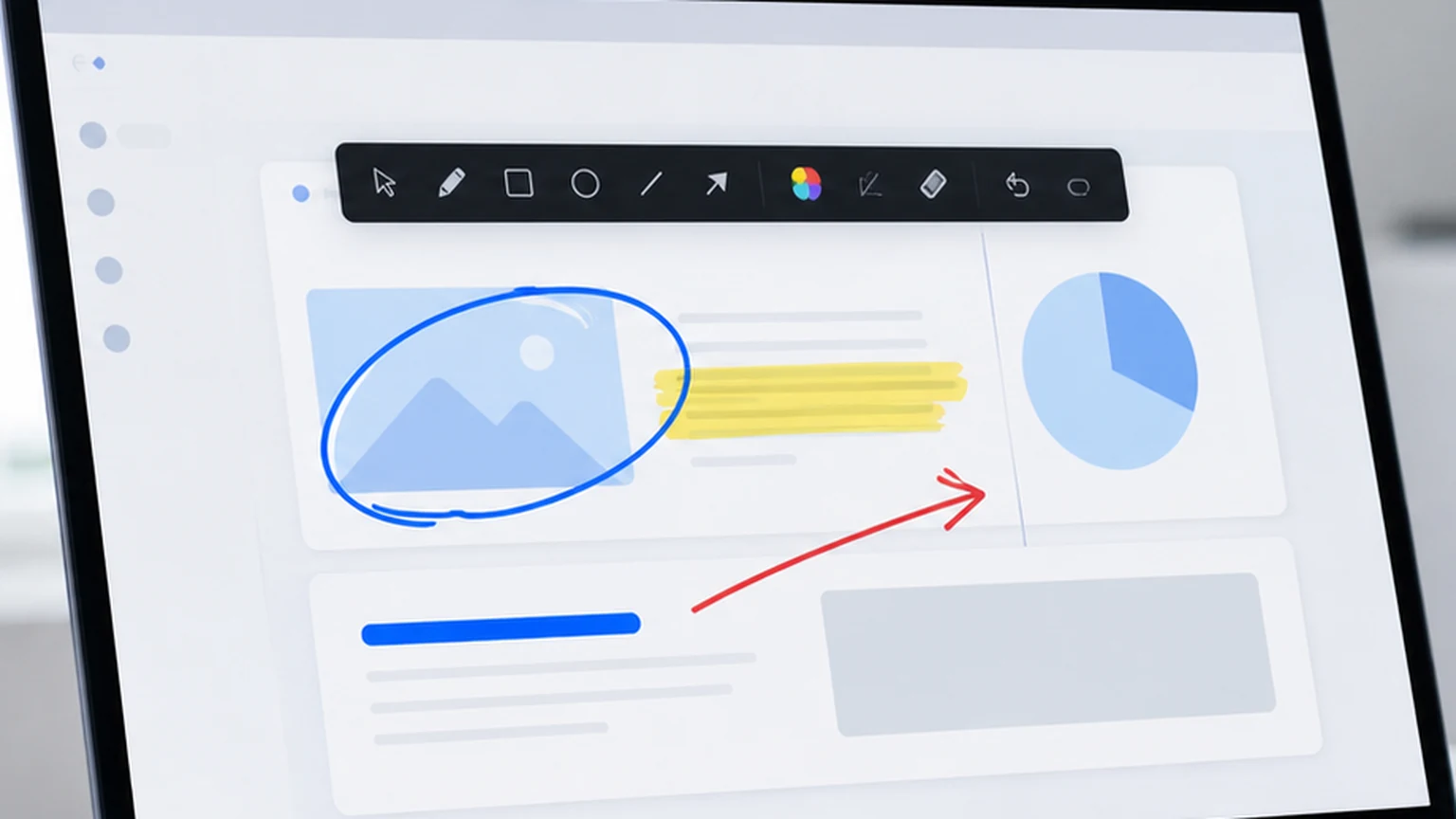
When guiding through a multi step process, draw arrows from one step to the next. Circle the first step, draw an arrow to the second, circle the second. The visual sequence maps the path through the interface.
Highlight Error Details
When an error appears, highlight the relevant details: error code, error message, affected field. This tells the customer exactly what information matters, which speeds up troubleshooting.
Clear After Each Step
Clear your marks after the customer completes each step. Leftover marks from previous steps create confusion about what is current. A clean screen for each new instruction keeps the support flow clear.
Annotation vs. Remote Desktop Control
Some support workflows use remote desktop tools that let the technician control the customer's machine directly. This is effective but has tradeoffs. Many customers are uncomfortable giving control of their computer to another person. Some corporate policies prohibit it. And it takes the customer out of the learning process because they are watching someone else click instead of learning to do it themselves.
Annotation keeps the customer in control. They make the clicks. They follow the visual guide. They learn the process. Next time the issue comes up, they might remember the steps without needing to call support again. For more on screen drawing techniques, see the drawing on screen in Windows guide. For tool comparisons, the free screen annotation tool guide covers several options.
FAQ
Can I annotate the customer's shared screen?
If you are using a remote desktop tool that gives you access to the customer's machine, you can run Penslide on their machine and annotate directly. If you are on a video call where the customer is sharing their screen, you annotate your own screen and guide them verbally while using the annotation on your shared screen for reference.
Is Penslide free for commercial support teams?
Yes. Penslide is free for all users, including commercial support teams. There are no per seat licenses, no team pricing, and no feature restrictions.
Does annotation work with remote desktop software?
Yes. If you run Penslide on a remote desktop session, the annotation appears on the remote screen. This works with tools like TeamViewer, AnyDesk, Chrome Remote Desktop, and Windows Remote Desktop.
How does annotation reduce support call time?
Visual guidance eliminates the "find the button" phase of verbal instructions. Each annotated step takes seconds instead of minutes. Over a full support call with multiple steps, this reduces the total call time significantly.
Conclusion
Remote support is a communication challenge, and screen annotation is the most direct solution. Instead of describing where to click, you show where to click. Instead of hoping the customer follows verbal directions, you draw a visual path they can follow.
Penslide makes that workflow available in a free, portable, lightweight package. It opens fast, draws clean marks, clears instantly, and stays out of the way during the call. For support teams that resolve issues over screen share, this is one of the simplest improvements you can make to your workflow.
Get Started
Download Penslide from the download page and use it in your next support call. Visit the homepage for a full overview, check the features, or read the live screen markup guide for more on real time annotation workflows.
Use Penslide with the next screen share
Open Penslide, point to the part of your screen you need, and draw in a way that keeps the audience on the same page. It works with slide decks, browser windows, and shared apps.