Free PDF Annotator: How PenSlide Free Universal Annotator Makes Markup Easier
A practical guide to using PenSlide as a free PDF annotator for PDFs, screenshots, presentations, training materials, online meetings, and teaching.
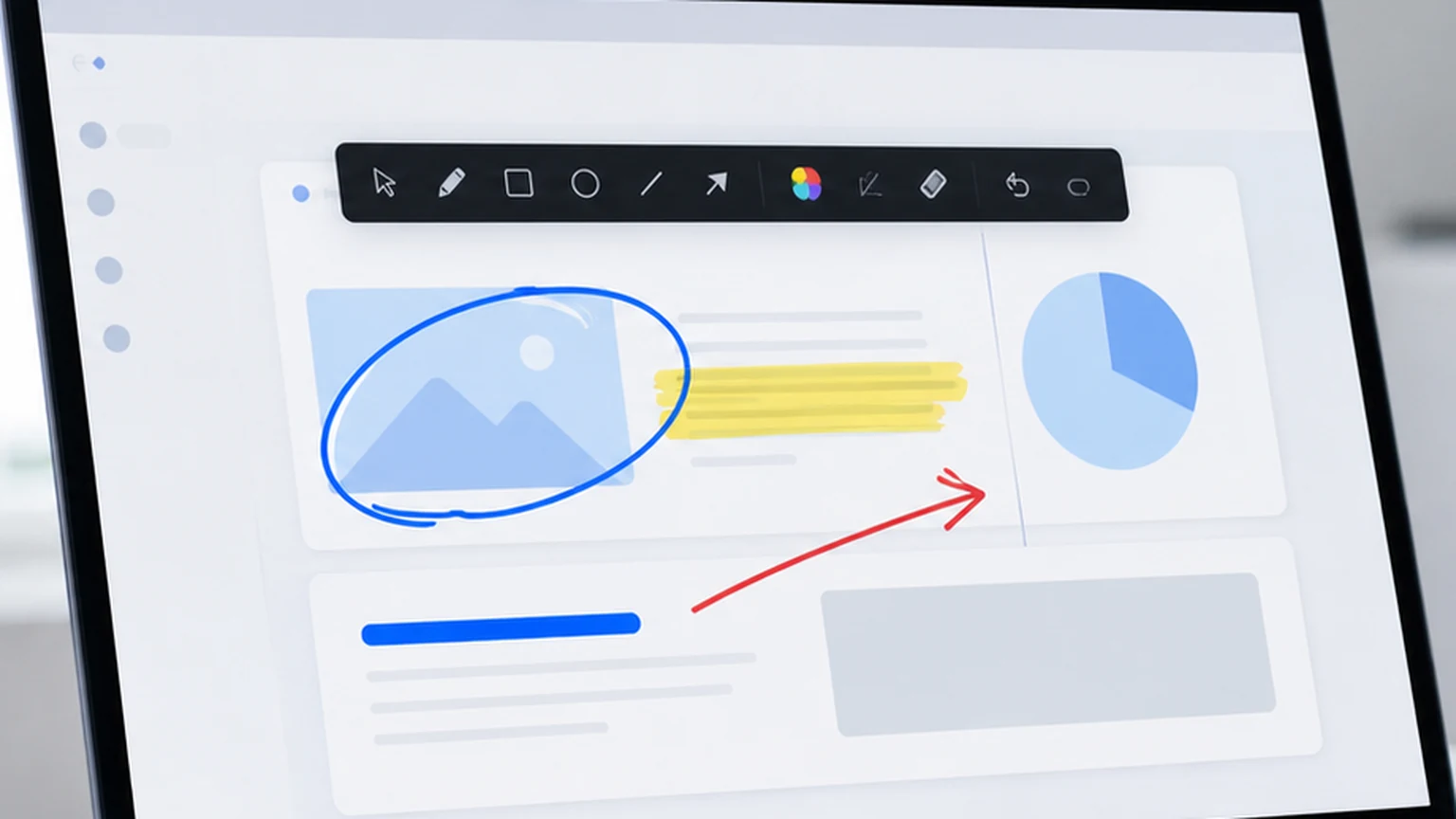
If you work with PDFs often, you already know the small pain points. Someone sends you a form, a report, a lesson plan, a training file, or a slide deck saved as PDF. You need to mark one part, circle a mistake, add a note, or explain something while other people watch. A good free pdf annotator should make that simple.
That is the reason PenSlide Free Universal Annotator exists. It gives you a fast way to open a supported file, mark it up, and save the result as an annotated PDF. It also gives you live screen annotation when you need to explain something that is not inside a PDF.
I like tools that do not get in the way. PenSlide is free to download, easy to use, and built for real work. You can use it with PDFs, presentations, screenshots, training materials, online meetings, and educational content without learning a heavy design app.
If you came here looking for a free pdf annotator that feels practical rather than complicated, this guide will walk you through what PenSlide does, where it helps, and why live annotation can be faster than the traditional PDF workflow.
Download PenSlide Free Universal Annotator
PenSlide is free to download and quick to set up. Try it with your next PDF, screenshot, lesson file, or meeting document.
What Is a Free PDF Annotator?
A free pdf annotator is an app that lets you add marks to a PDF without paying for a full PDF editor. The basic job is simple. You open a PDF, draw on it, highlight something, add text, use arrows or shapes, and save a copy.
That sounds basic, but it matters a lot. Most people do not need to rebuild a PDF. They do not need page layout tools or document publishing features. They just need to show what needs attention.
For example, a teacher may highlight a paragraph in a worksheet. A project manager may circle a number in a report. A student may add quick notes to lecture slides. A support worker may point to the exact button a customer should click.
In those moments, speed matters more than a long feature list. A free pdf annotator should help you mark the file in seconds.
Why PDF Annotation Matters in Real Work
PDFs are everywhere because they keep documents stable. A PDF looks the same on most devices, which makes it useful for forms, reports, invoices, lessons, manuals, contracts, and slide handouts.
The problem is that PDFs are often passive. You read them, but you cannot easily point at the exact part you mean. When you need to explain a PDF to another person, plain words can become slow.
Think about a meeting where someone says, "Look at the second figure near the bottom." Half the group looks at the wrong place. Someone else is on another page. Then the speaker has to explain again.
Now compare that with drawing a circle around the figure and adding an arrow. Everyone understands at once. That is why a free pdf annotator is useful. It turns a static file into something you can explain clearly.
Common Problems With Traditional PDF Annotation Tools
Traditional PDF annotation tools can work well, but they often feel heavy for everyday use. Many of them were designed as full document editors first and annotation tools second.
That creates a few common problems.
They Take Too Long to Open
When you need to add one mark, a slow app feels painful. You wait for the software to start, load toolbars, check account status, and show a welcome screen. By the time it opens, the moment may be gone.
They Have Too Many Tools
A full PDF editor may show dozens of buttons. That is useful for advanced editing, but it slows down basic annotation. You should not have to hunt for a pen or highlighter.
They Break the Flow During Meetings
In a live call, you do not want to pause the discussion while you save a screenshot, open it in another app, mark it, export it, and share it back. That old workflow is slow.
They Only Work Inside the PDF
Sometimes the thing you need to explain is not in the PDF anymore. It might be in a browser, a video call, a slide show, a training app, or a screenshot. A PDF-only tool cannot help there.
How PenSlide Works as a Universal Annotator
PenSlide Free Universal Annotator is built around a simple idea. You should be able to annotate the file or screen you are already using.
When you open a PDF, PenSlide lets you mark it directly. You can draw, highlight, add arrows, use shapes, and place text. In the free version, a multi-page PDF opens one selected page, and you can save that page as a new annotated PDF.
When you open supported image or text based files, PenSlide can convert them into a PDF-style page so you can mark them in the same workspace. For Office files, PenSlide can use Microsoft Office or LibreOffice when available. If the file type is not supported inside the app, PenSlide can open it in its normal application and start screen annotation mode.
This is why PenSlide feels different from a normal free pdf annotator. It is not limited to the PDF window. It also helps when you need to mark presentations, screenshots, training material, browser content, or meeting screens.
Drawing, Highlighting, Arrows, Shapes, and Text
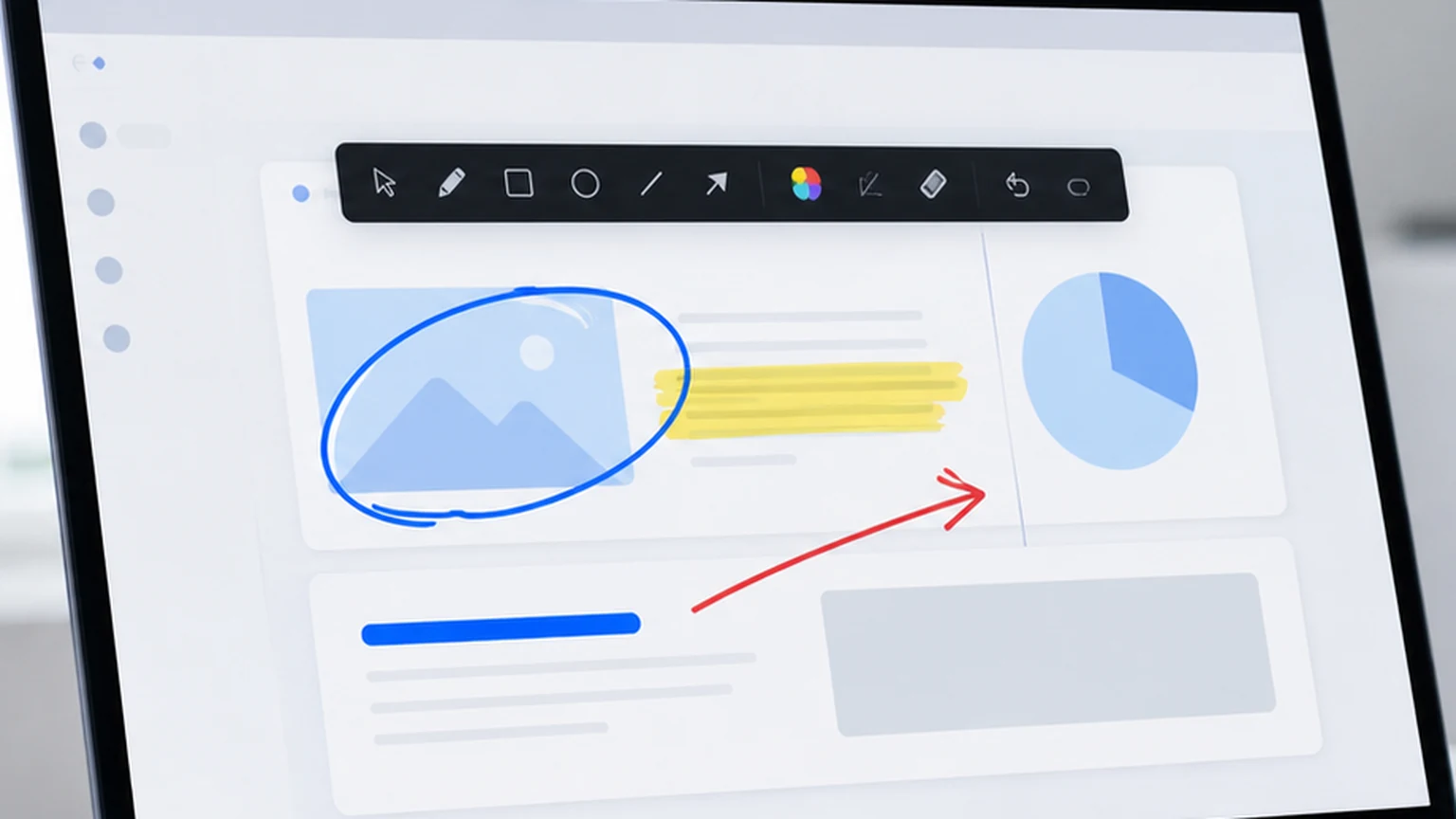
The main PenSlide tools cover the marks people use most.
Draw Freehand Notes
The pen tool is useful when you want quick marks. You can underline a phrase, circle a number, cross out a mistake, or sketch a short pointer.
Highlight Important Areas
The highlighter helps when the original text still needs to stay readable. This is useful for lesson notes, legal reviews, research papers, and training guides.
Use Arrows to Guide Attention
Arrows are one of the fastest ways to explain a screen. Instead of saying "the small button on the right," you point to it.
Add Shapes for Clear Boundaries
Rectangles and ovals help you group information. You can frame a table, mark a form field, or separate the part that needs review.
Add Text Notes
Text helps when a mark needs a short explanation. A simple note like "check this date" or "use this value" can save a long email thread.
Annotating PDFs During Meetings and Presentations
This is where PenSlide becomes more than a basic free pdf annotator. A lot of annotation happens live.
Imagine you are presenting a PDF report in a Teams or Zoom call. Someone asks about a graph. You can draw a quick circle around the trend, add an arrow to the exact point, and keep talking. You do not need to stop the meeting.
The same applies to slide decks. Many people export slides to PDF before sending them around. With PenSlide, you can mark a slide page during a review, highlight the decision area, and save an annotated copy afterward.
For more presentation ideas, read the guide on how to annotate your screen during presentations or the presentation annotation tool guide.

Why Live Annotation Is Often Faster Than the Old Workflow
The traditional workflow usually looks like this. Open the PDF. Take a screenshot. Paste it into another tool. Draw the mark. Save the image. Send the image. Then return to the meeting or document.
That works, but it is slow. It also creates extra files. You end up with screenshots, edited screenshots, saved PDFs, and email attachments that are hard to track later.
Live annotation cuts out the extra steps. You mark the thing in front of you while people are looking at it. If you need a saved PDF, you save the annotated copy. If you only need to explain a point during a call, you clear the marks and move on.
That flexibility matters. Not every annotation needs to become a permanent file. Sometimes you just need to guide attention for ten seconds.
Using PenSlide for Teaching and Training
Teachers and trainers use annotation all day. They explain worksheets, slides, diagrams, web pages, forms, and software screens. A free pdf annotator helps with lesson files, but a universal annotator helps with the whole teaching flow.
During an online class, you can open a PDF worksheet and highlight the question being discussed. You can draw a box around a diagram. You can add a quick note beside an example. If the lesson moves to a browser or an app, you can use screen annotation instead.
Training teams can use the same workflow. Mark a step in a process document. Circle the button in a web app. Draw an arrow from one field to the next. Then clear the screen and continue.
The benefit is simple. Learners know where to look. You spend less time repeating instructions and more time teaching.
Remote Support and Screen Sharing Use Cases
Remote support is another place where annotation saves time. When a customer cannot find a setting, words are not always enough. You can say "top right corner," but they may still click the wrong icon.
With PenSlide, you can mark the screen while sharing. Circle the menu. Draw an arrow to the field. Highlight the error message. The user sees the exact spot.
This works for PDFs too. If a customer sends a PDF form with a missing field, you can mark the field and send back a clean annotated copy. If the problem is in software, you can switch to screen markup.
For more help desk examples, see the remote support annotation guide.
Benefits for Students and Professionals
Students can use PenSlide to mark lecture notes, study guides, research PDFs, and screenshots from online classes. The free version is a good fit when you need quick page-level annotation without a paid PDF suite.
Professionals can use it for reports, invoices, checklists, meeting notes, design reviews, and process documents. A free pdf annotator is useful when you only need to mark and share feedback.
Managers can use it during reviews. Trainers can use it during onboarding. Support teams can use it during calls. Teachers can use it during lessons. The tool stays simple enough that people can use it without training.
Why PenSlide Is Different From Other Annotation Tools
PenSlide is different because it does not treat annotation as a document editing job only. It treats annotation as a communication job.
That is a big difference. In real life, you annotate to explain something. Sometimes that thing is a PDF. Sometimes it is a slide. Sometimes it is a screenshot. Sometimes it is a live app during a meeting.
Traditional PDF tools often assume you will work slowly inside one document. PenSlide supports that, but it also supports the fast moments where you need to draw and move on.
It is also easy to understand. The core tools are visible. The app opens quickly. The free version is free to download. You can start using it without reading a manual.
Performance, Ease of Use, and Windows Compatibility
PenSlide is designed for Windows users who want a direct workflow. Download it, open it, choose a file, and start marking.
The interface uses familiar tools: pen, highlighter, eraser, shapes, arrows, text, colors, and stroke width. You do not need to learn a complex PDF editing system.
Windows compatibility matters because many offices, schools, and support teams still run Windows every day. PenSlide fits that environment. It is useful on a work laptop, a teaching computer, or a personal study machine.
You can learn more about the wider product on the PenSlide home page, browse more guides on the PenSlide blog, or go straight to the download page.
FAQ
What is the best free pdf annotator for simple markup?
PenSlide Free Universal Annotator is a strong choice if you want simple markup tools without a heavy PDF editor. It lets you draw, highlight, add arrows, use shapes, add text, and save an annotated PDF page.
Is PenSlide free to download?
Yes. PenSlide is free to download from the official download page. The free version gives you a practical annotation workflow for PDFs and supported files.
Can I use PenSlide to annotate PDFs?
Yes. You can open a PDF, mark it with annotation tools, and save the result as a new annotated PDF. In the free version, multi-page PDFs open one selected page.
Can PenSlide annotate screenshots?
Yes. You can open image files as supported content and mark them inside PenSlide. You can also use screen annotation when you need to mark something live on your desktop.
Can I annotate presentations with PenSlide?
Yes. If your slides are saved as PDF, you can annotate them directly. You can also use live screen annotation during a presentation to mark slides while the audience watches.
Does PenSlide work for online meetings?
Yes. PenSlide is useful during online meetings because you can draw attention to details while sharing your screen. This is often faster than taking a screenshot and editing it later.
Who should use a free pdf annotator?
Students, teachers, trainers, office workers, support teams, and managers can all use a free pdf annotator. It helps whenever you need to mark a document clearly and quickly.
Why is live annotation better than a normal PDF-only workflow?
Live annotation is faster when you need to explain something in the moment. You can mark the screen, make the point, clear the marks, and continue. A PDF-only workflow often requires extra screenshots and saved files.
Conclusion: A Free PDF Annotator Built for Real Work
A good free pdf annotator should help you explain things faster. It should not slow you down with menus, setup steps, or tools you never use.
PenSlide Free Universal Annotator focuses on the marks people actually need: drawing, highlighting, arrows, shapes, text, and live screen markup. It works well for PDFs, presentations, screenshots, training materials, online meetings, and educational content.
If your current workflow involves screenshots, separate image editors, and too many saved copies, PenSlide can make the work feel lighter. Open the file, mark the point, save the PDF if you need it, or annotate live and keep moving.
Download PenSlide Free Universal Annotator
PenSlide is free to download and easy to use. Try it the next time you need a free pdf annotator for a PDF, presentation, screenshot, training session, online meeting, or lesson.