Draw over any app
Use Penslide on slides, browsers, documents, video calls, and software demos.
Penslide helps you draw on your screen while people are watching. You can circle a button, highlight a sentence, point to a detail, or mark a problem during a meeting, lesson, product demo, or support call.
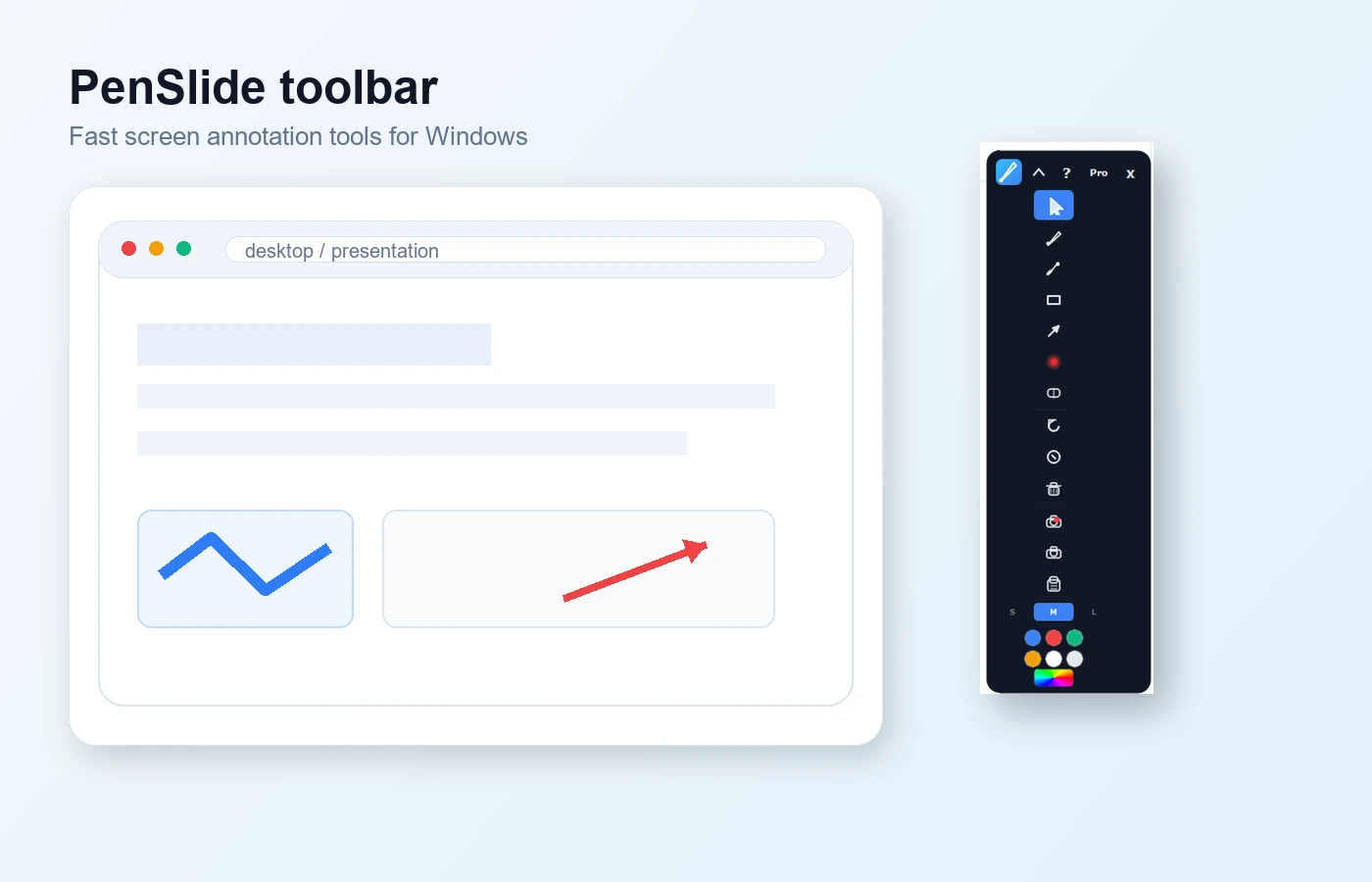
Use Penslide on slides, browsers, documents, video calls, and software demos.
Show the exact text, field, chart, or button you are talking about.
Open the toolbar, draw what matters, clear it, and carry on.
Use the core screen annotation tools without an account or subscription.
A screen annotation tool lets you draw on top of your live screen. The apps underneath stay open. Your marks sit above them, so your audience can see exactly what you mean without you opening a separate whiteboard or screenshot editor.
That sounds small, but it changes a lot in real calls. Instead of saying "look near the top right" and hoping everyone follows your cursor, you can draw a circle around the thing. Instead of explaining which line matters, you can highlight it. It saves time because people stop guessing.
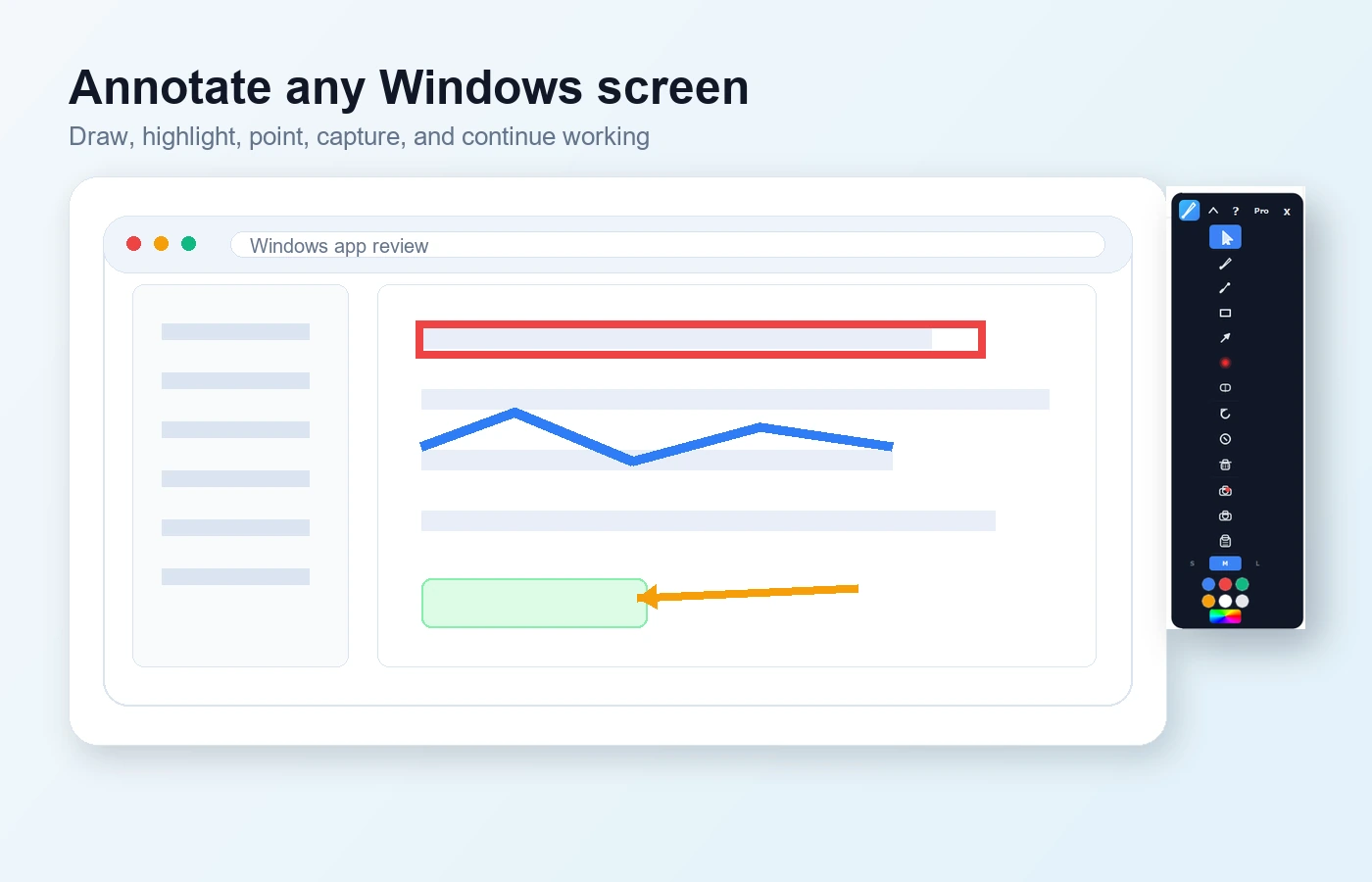
Penslide is built for the quick moments where you need to show something clearly. It is not trying to be a heavy design app. It gives you the tools most people actually use during screen sharing.
If you are comparing terms, Penslide also works as a screen annotator, lightweight screen annotation software, and a simple desktop annotation tool.
The best screen annotation tool is the one you can use without stopping the conversation. Penslide is designed around that idea.
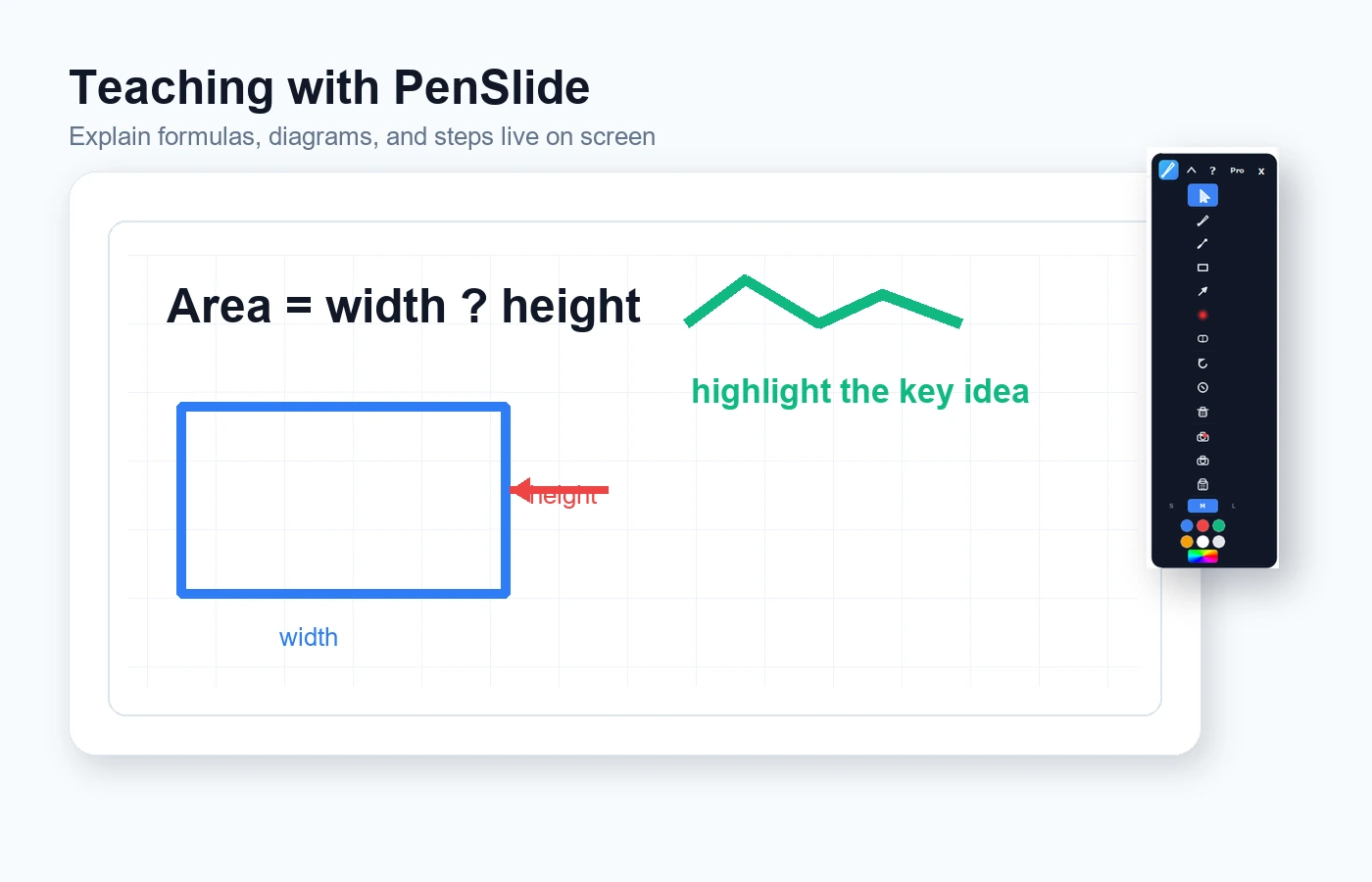
During online lessons, a spoken explanation is not always enough. You can highlight a keyword, underline a formula, or circle the next step while students watch. The screen becomes easier to follow.
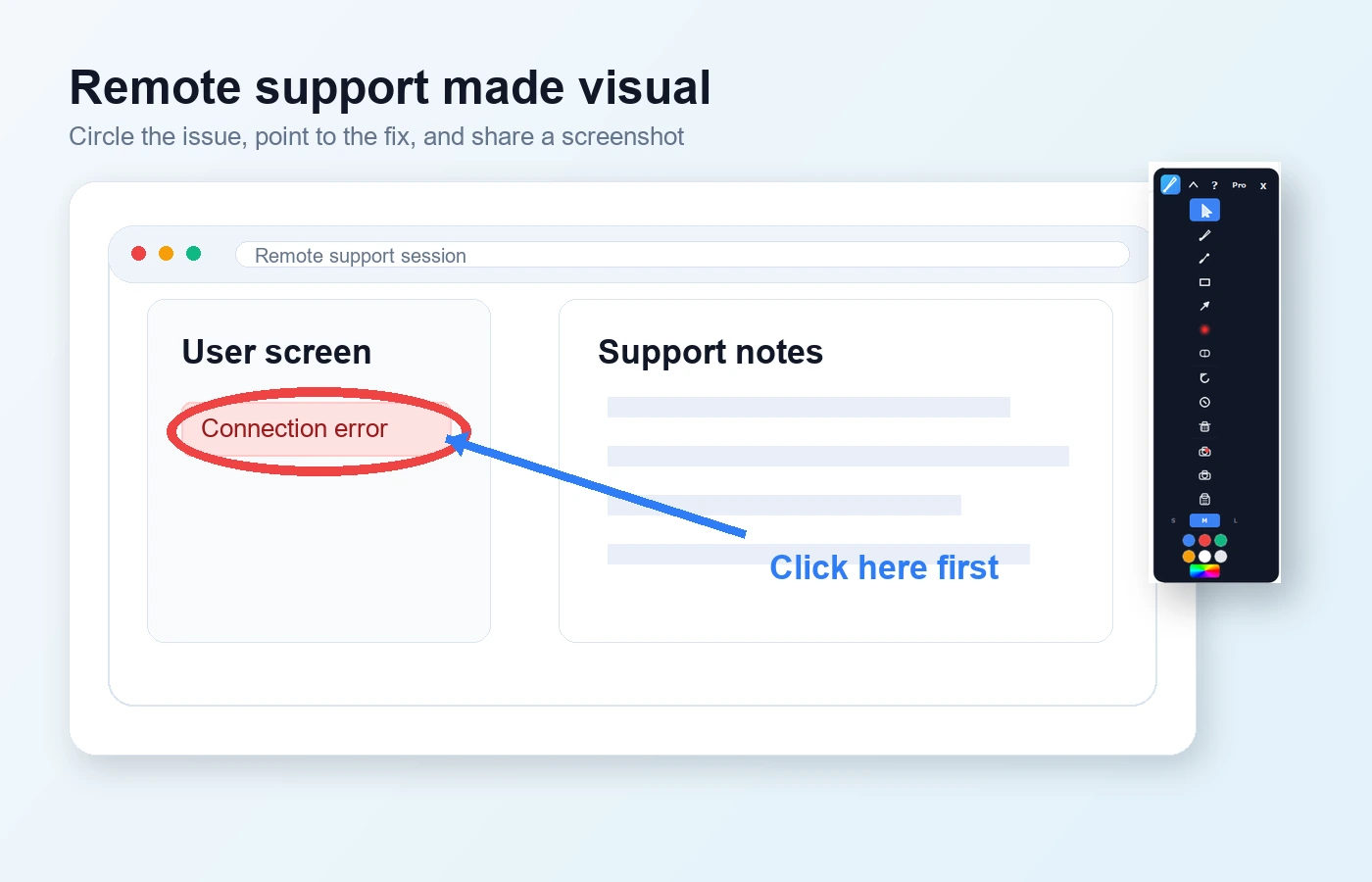
Support calls are much easier when you can mark the screen. Circle the setting. Point to the button. Draw a path through the steps. It feels more human than reading instructions out loud.
When you demo software, the audience needs to know what changed and where to look. Penslide lets you point things out while the real product is still on screen.
| Feature | Penslide Free | Typical screenshot editor | Meeting app annotation |
|---|---|---|---|
| Draw on live screen | Yes | No | Sometimes |
| Works across apps | Yes | No | No |
| Good for teaching | Yes | Only after capture | Only inside the meeting |
| Fast clear and reset | Yes | No | Sometimes |
| Free core tools | Yes | Depends | Depends |
Download Penslide, open the app, and use the small toolbar when you need to draw. You do not need to build a new workflow around it. It fits into the screen sharing you already do.
It is an app that lets you draw, highlight, point, and write over your live screen. It is useful when you need to explain something while people are watching.
Yes. Penslide Free includes the core tools for screen drawing, highlighting, erasing, pointing, and screenshot capture.
Yes. Penslide is available for Windows and macOS. Use the download page to get the right version.
Yes. Penslide is made to work over your desktop, so you can use it on slides, browsers, apps, documents, and calls.