Desktop Annotation Software That Actually Feels Lightweight

There is a particular kind of frustration that comes with annotation software that takes longer to open than the mark you need to make. You are mid-meeting, someone asks you to highlight a line in a spreadsheet, and you reach for your annotation tool. It loads. And loads. The toolbar appears with thirty options you have never used. By the time you find the pen, the moment has passed.
Desktop annotation software should not feel like opening Photoshop. It should feel like picking up a marker. Fast, immediate, and light enough that you barely notice the tool itself. You notice the mark it makes, and that is it.
This guide covers what makes desktop annotation software feel lightweight, why that matters for daily use, and how Penslide was built around that principle.
What "Lightweight" Actually Means for Annotation Software
When people describe software as lightweight, they usually mean one of three things. For annotation tools, all three matter.
Fast Startup
The tool should be ready in under two seconds. If you have to wait for a splash screen, a license check, or a loading animation, the software is already getting in the way. Penslide launches from a single executable with no installer, no splash screen, and no login. You double click and the toolbar is there.
Small Interface
The entire point of annotation is that the screen content is the main focus. The tool is secondary. A lightweight annotation app uses a compact toolbar: a strip of icons that floats at the screen edge and takes up minimal space. If the toolbar is wider than a few centimeters, it is competing with your content for attention.
Low Resource Usage
The app should not spike your CPU or consume hundreds of megabytes of memory. Annotation is a simple task. The software should reflect that simplicity. If your laptop fan starts spinning when you open an annotation tool, something is wrong with the tool.
Why Lightweight Annotation Matters for Daily Work
Some tools are used occasionally. You install them, learn them, and open them once a week. Annotation software is not like that. If it works well, you use it several times a day. During a morning standup, a training call, a design review, a support session, and a project demo.
For a tool you open that frequently, every second of overhead adds up. A five second launch time is barely noticeable once. Over twenty uses per week, that is almost two minutes of waiting. A toolbar with unnecessary options slows you down because you scan past irrelevant icons to find the one you need. A resource heavy app makes your fan spin during calls, which is distracting for both you and your audience.
Lightweight is not about being minimal for the sake of minimalism. It is about respecting the fact that annotation is a support task, not the main event. The software should enable annotation and then get out of the way.
What Makes Most Annotation Software Feel Heavy
If you have tried a few annotation tools, you have probably experienced the heavyweight approach. Here are the common patterns that make annotation software feel bloated.
Installer and Setup Wizard
Many annotation tools require a traditional Windows installer. You download an MSI or EXE installer, run it, click through several screens, accept a license agreement, choose an install directory, and restart the app. For a tool that draws lines on your screen, this level of ceremony is unnecessary.
Portable apps skip all of that. You download one file, run it, and the tool is ready. No registry entries, no Start menu shortcuts, no uninstall process. Penslide is portable by design.
Feature Bloat
Some tools start as simple annotation apps and then expand into multimedia suites. They add video recording, cloud storage, team collaboration, shape libraries, text formatting, and integration plugins. Each feature adds buttons to the toolbar, entries to the menu, and complexity to the learning curve.
Those features are genuinely useful for some users. But if you just need to draw circles and highlight text, the extra features are clutter. They slow down the interface and make the simple tasks harder to find.
Background Processes
Some annotation tools install background services that run when you start Windows. They sit in the system tray, checking for updates, syncing data, or waiting for a hotkey. That background presence means the tool is always consuming resources, even when you are not using it.
A well designed annotation tool runs when you open it and stops when you close it. It does not need to monitor your system or phone home to a server.
How Penslide Stays Lightweight
Penslide was built from the start to be the opposite of bloated annotation software. Here is how it achieves that.
Single Executable
The entire app is one .exe file. No installer, no dependencies, no configuration files. You download it from the download page, put it wherever you want, and run it. Moving it to a new machine means copying one file.
Compact Toolbar
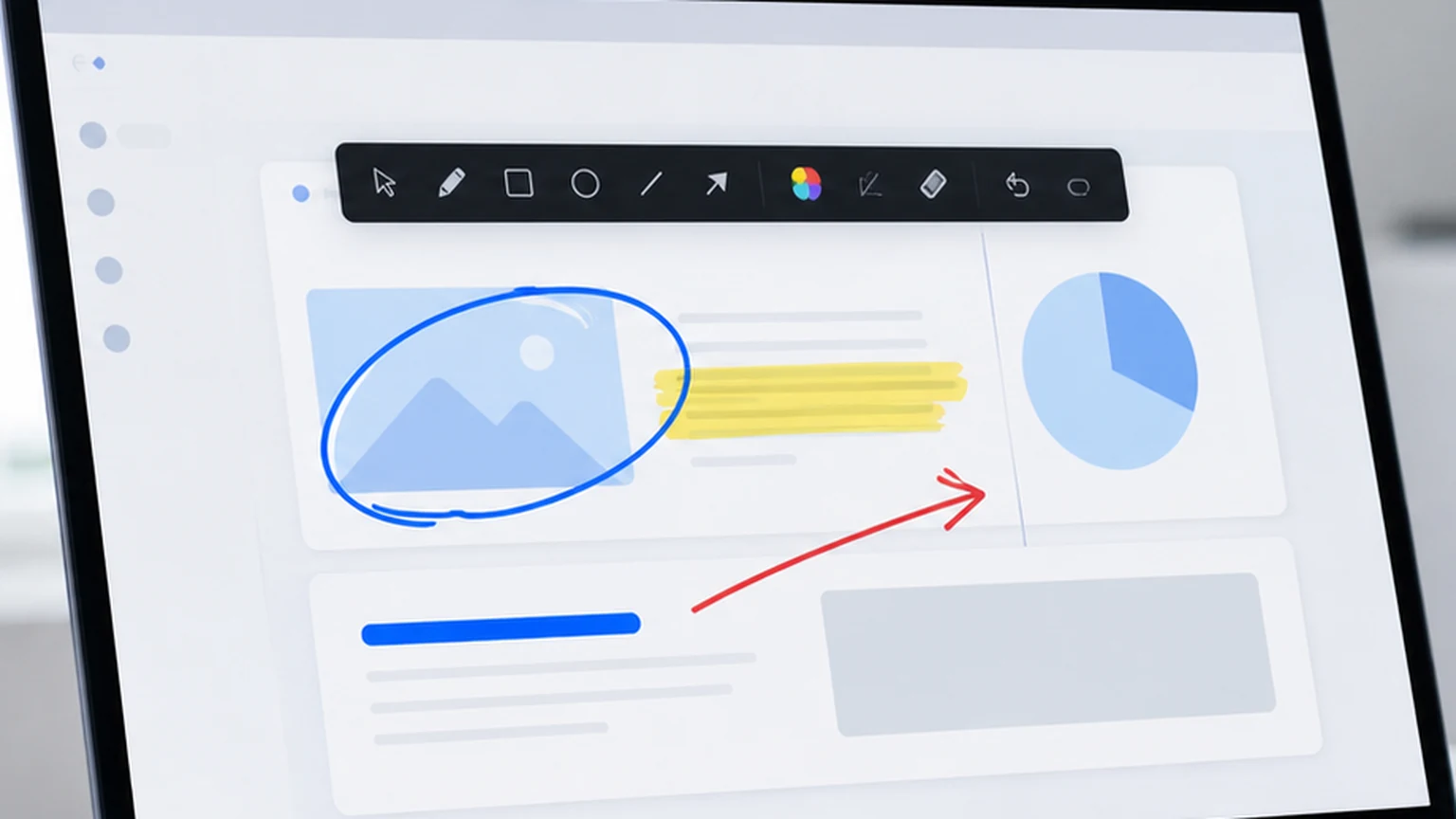
The toolbar contains the tools you actually use during annotation: pen, highlighter, color picker, undo, clear, and screenshot. There are no hidden menus with advanced options. What you see is what you get, and what you get is enough for real work.
No Background Processes
When you close Penslide, it stops running. There is no tray icon, no update checker, and no background service. The app exists only when you need it.
Low Memory Footprint
The app uses a fraction of the memory that larger annotation suites consume. On a typical Windows machine, you will not notice any difference in performance when Penslide is running alongside your other apps.
Real Workflows Where Lightweight Wins
The benefits of lightweight annotation software are clearest in specific situations. Here are the ones that come up most often.
Back to Back Meetings
When you have four meetings in a row and each one involves screen sharing, you need a tool that opens instantly. There is no time to launch a heavy app between calls. Penslide starts in under a second, so you can open it at the beginning of each meeting and close it at the end without affecting your schedule.
Customer Facing Calls
If you are on a call with a client or customer, professionalism matters. A cluttered toolbar or a visible "upgrade to Pro" banner undermines the clean impression you want to make. A minimal, ad free toolbar keeps the focus on your content. The remote support annotation guide covers this scenario in depth.
Shared or Restricted Machines
On work laptops with restricted installation rights, portable software is sometimes the only option. If IT has not approved your annotation tool and you cannot run an installer, a portable executable like Penslide is the practical workaround. The portable annotation tool guide explains this further.
Low Powered Hardware
Not everyone works on a high end workstation. If your machine is a few years old or has limited RAM, heavy annotation software can cause lag during screen sharing. A lightweight tool avoids that problem by keeping resource usage low.
Comparing Lightweight and Heavyweight Annotation Tools
Here is a practical comparison to illustrate the difference.
A heavyweight tool might offer video recording, cloud sync, team annotations, shape snapping, text insertion, PDF export, and plugin support. It requires an installer, creates a system tray icon, and uses 200 to 400 MB of RAM while running. The toolbar has two rows of icons.
A lightweight tool like Penslide offers freehand drawing, highlighting, color selection, undo, clear, and screenshot capture. It runs from a single file, uses minimal RAM, and shows a single row toolbar. There is nothing to configure, nothing to update manually, and nothing to uninstall.
If you need video recording or cloud collaboration, the heavyweight tool is the right choice. If you need to draw on your screen quickly during meetings and training, the lightweight tool is the right choice. Most people who try both end up using the lightweight one more often because the barrier to opening it is lower.
Tips for Keeping Your Annotation Workflow Light
- Keep the annotation tool pinned to your taskbar so it opens with one click.
- Use keyboard shortcuts for undo and clear instead of clicking toolbar buttons. It feels faster and keeps your hand near the keyboard for other tasks.
- Clear your annotations after each topic. A cluttered screen looks heavy, regardless of how light the tool is.
- Resist the urge to annotate every slide. Strategic annotation, one or two marks per screen, has more impact than constant marking.
FAQ
What is the lightest annotation software for Windows?
Penslide is designed to be one of the lightest options available. It runs from a single portable file, uses minimal memory, and shows a compact toolbar with only essential tools.
Can I use lightweight annotation software for presentations?
Yes. Lightweight tools like Penslide work across all apps on your desktop, including PowerPoint, Google Slides, and browser based presentation tools. The drawing layer sits on top of everything.
Does a smaller toolbar mean fewer features?
It means fewer unnecessary features. The core annotation tools, pen, highlighter, undo, clear, and screenshot, are all present. What is missing are features like cloud storage, video recording, and team collaboration that belong in different software.
Will lightweight annotation software run on older Windows versions?
Penslide is built for Windows 10 and Windows 11. It is designed to run well on modern hardware, including machines that are a few years old.
Conclusion
Desktop annotation software should match the task it serves. Annotation is a fast, lightweight activity: draw a circle, highlight a sentence, clear the marks, and move on. The software that handles this task should be equally fast and lightweight.
Penslide is built on that principle. It opens instantly, shows only the tools you need, and disappears when you are done. If you have been frustrated by heavy annotation tools that feel like they were designed for a different purpose, this is the alternative worth trying.
Get Started
Download Penslide from the download page and experience the difference a lightweight tool makes. Visit the homepage for a product overview, check the feature list, or read the Windows annotation software guide for a detailed look at choosing the right tool.
Use Penslide with the next screen share
Open Penslide, point to the part of your screen you need, and draw in a way that keeps the audience on the same page. It works with slide decks, browser windows, and shared apps.