Simple Annotation Software for Windows That Does Not Slow You Down

There is a category of software that should be boring. Annotation software for Windows falls into that category. It draws lines on your screen. It highlights text. It clears the marks when you are done. That is the entire job description. It should not require a manual, it should not slow down your computer, and it should not make you think about the software itself while you are trying to use it.
And yet, a lot of annotation software manages to be complicated. Installers with multiple steps. Toolbars with dozens of buttons. Background processes that sit in memory when you are not even annotating. Feature lists that read like a design suite when all you wanted was to circle something on screen.
This guide is about finding annotation software for Windows that stays simple, stays fast, and does not slow you down. Penslide is built on that exact principle, and I will explain how it compares to other options throughout.
What Annotation Software Should Do
Start with the use case and work backward. You are in a meeting, a training session, or a support call. You need to draw on your screen. Here is what the software needs to handle.
Draw on Top of Any App
The annotation layer should sit on top of your entire desktop. Whatever app is in the foreground, slides, browser, spreadsheet, code editor, the annotation should work on top of it. If the tool only works inside one specific app, it fails the moment you switch to another.
Open Fast
You need to annotate now, not after a loading screen. The tool should be ready in under two seconds from the moment you click it. If the startup takes longer than the annotation you need to make, the tool is too slow.
Show a Simple Toolbar
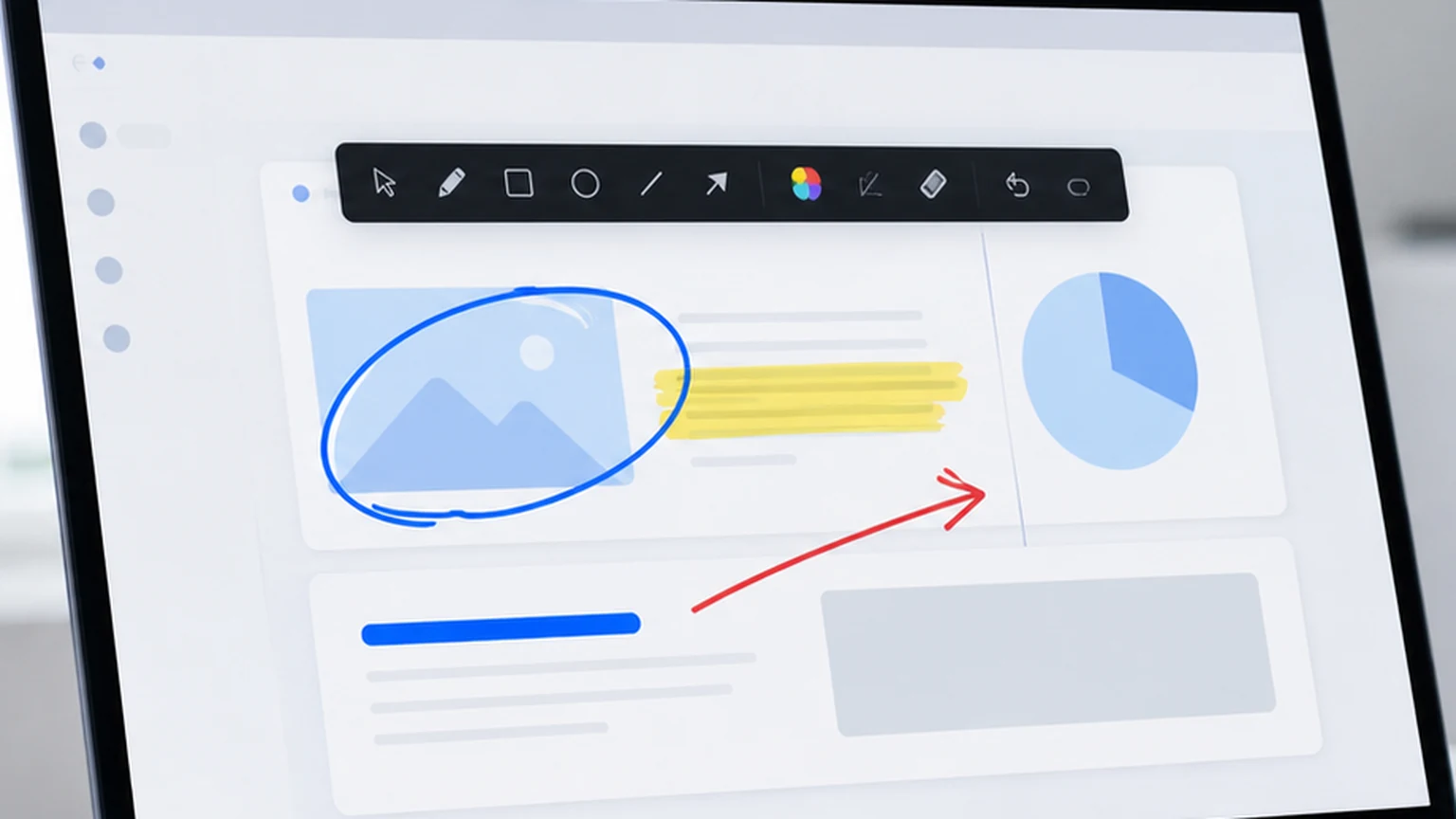
A pen, a highlighter, a color picker, undo, clear, and screenshot. Those are the tools people use during annotation. Every additional button is another thing to scan past when you are looking for the pen in the middle of a meeting.
Clear Instantly
After you make your point, you clear the marks. One click. The screen returns to normal. If clearing requires navigating a menu or confirming a dialog, the tool is wasting your time.
Use Minimal Resources
Annotation is a simple task. The software should not spike your CPU or consume hundreds of megabytes of RAM. If your laptop fan starts spinning when you open an annotation tool, the software is doing more than it should.
Why Most Annotation Software Feels Slow
If the requirements are this simple, why do so many tools feel slow? The answer is usually feature creep. A tool starts as a simple screen annotation app, and then the developers add features: video recording, cloud storage, shape libraries, text formatting, collaboration features, plugin systems.
Each feature adds code, adds interface elements, and adds startup time. The tool that once opened in one second now takes five. The toolbar that once had six buttons now has twenty. The app that once used 30 MB of RAM now uses 300.
None of those added features are bad on their own. But for users who just want to draw on their screen, they are overhead. You pay the cost of the complexity without using the features that created it.
How Penslide Stays Fast
Penslide avoids the complexity trap by being intentionally limited. Not limited as in broken, but limited as in focused. It does the annotation job and nothing else.
Single Executable
No installer. No setup wizard. No dependencies. One .exe file that you download from the download page and run. That is the entire installation process. It takes about three seconds.
No Background Processes
When you close Penslide, it stops running. There is no system tray icon checking for updates, no background service maintaining a connection, no telemetry sending data. The app exists when you are using it and does not exist when you are not.
Focused Feature Set
Pen, highlighter, color picker, undo, clear, screenshot. That is the complete feature set. There are no shape libraries, no text insertion tools, no layer panels, and no export wizards. These features belong in design software, not in a tool whose job is to circle things during meetings.
Low Memory Usage
The app uses a fraction of the memory that full featured annotation suites consume. On a typical Windows 10 or 11 machine, Penslide runs alongside your other apps without any noticeable performance impact.
Who Needs Simple Annotation Software
The audience for lightweight annotation software is broad. Here are the groups that benefit the most.
Meeting Presenters
Anyone who shares their screen during meetings and needs to direct attention. Circling a metric, highlighting a row, drawing an arrow from one element to another. These are five second tasks that happen dozens of times per week. A fast, simple tool makes each instance frictionless. See the presentation annotation guide for specific techniques.
Teachers and Trainers
Online teachers annotate constantly during lessons. Highlighting text, circling diagram components, underlining key phrases. The tool needs to be fast enough that it does not interrupt the teaching flow. The presentation tools for teachers guide covers this in detail.
Support Technicians
Remote support calls rely on visual guidance. Drawing a path from one menu to another, circling a button, highlighting an error message. The faster the tool, the shorter the call. The remote support annotation guide explains this workflow.
Professionals on Restricted Machines
On work laptops where IT controls software installation, a portable annotation tool is sometimes the only option. Penslide runs without installation, without admin rights, and without leaving traces on the system. The portable annotation tool guide covers why this matters.
Comparing Simple vs. Complex Annotation Tools
Here is a practical comparison to illustrate the difference.
A complex annotation tool might include pen, highlighter, shapes (rectangle, ellipse, arrow, line), text box, image stamp, screen recording, webcam overlay, cloud save, team collaboration, and plugin support. It requires an installer, runs a background service, and uses significant memory. The toolbar has multiple rows of icons. Learning the tool takes a dedicated session.
A simple annotation tool like Penslide includes pen, highlighter, color selection, undo, clear, and screenshot. It runs from a single file, uses minimal memory, and shows one row of icons. Learning the tool takes about two minutes.
If you use shapes, text boxes, and recording regularly, the complex tool earns its overhead. If you use the pen and highlighter 95% of the time, the simple tool is faster for the tasks that actually matter.
Tips for Choosing Annotation Software for Windows
- Try the free version before paying for anything. Most annotation tasks can be handled by a free tool. Paying for features you do not use is a waste.
- Check the startup time. Open the tool and count to two. If the tool is not ready by then, it is too slow for meeting use.
- Look at the toolbar. If more than half the buttons are things you will never use, the tool is too complex for your needs.
- Check whether the tool is portable. If you present from different machines or your work laptop restricts installation, a portable .exe is essential.
- Test the clear function. If it takes more than one click or shortcut to clear all marks, the tool will slow you down during presentations.
Windows Specific Considerations
Annotation software on Windows needs to handle a few platform specific details.
High DPI displays are common on modern Windows laptops. The annotation tool should render cleanly on high DPI screens without fuzzy lines or misaligned strokes.
Multi monitor setups are standard in many workplaces. The tool should work on whichever monitor you are sharing, not just the primary display.
Windows Defender and corporate antivirus can flag unfamiliar executables. A well established tool with a known reputation avoids false positive blocks. Penslide runs cleanly on standard Windows configurations.
The desktop annotation software guide covers more on what makes annotation software feel lightweight on Windows.
FAQ
What is the simplest annotation software for Windows?
Penslide is designed to be one of the simplest options. It runs from a single file, shows a compact toolbar with only essential tools, and does not require installation or configuration.
Does simple annotation software work during video calls?
Yes. Penslide draws on your desktop, so the annotations appear in your screen share on Zoom, Teams, Google Meet, or any other platform. The tool works alongside any video call app.
Can I use annotation software on Windows without admin rights?
Yes. Penslide is a portable executable that runs without installation. You do not need admin rights to download, open, or use the app.
Does annotation software slow down Windows?
A well designed annotation tool uses minimal system resources. Penslide is lightweight by design and does not noticeably affect system performance on modern Windows machines.
Conclusion
Annotation software for Windows should match the simplicity of the task it serves. Drawing on your screen is a simple action. The software that enables it should be equally simple: fast to open, clear to use, and invisible when you are done.
Penslide delivers that experience. No installer, no feature bloat, no background processes. Just a compact toolbar with the tools you actually use, available the moment you need them and gone the moment you do not.
Get Started
Download Penslide from the download page and see how simple annotation can be. Visit the homepage for a product overview, check the feature list, or read the free screen annotation tool guide for a broader comparison of options.
Use Penslide with the next screen share
Open Penslide, point to the part of your screen you need, and draw in a way that keeps the audience on the same page. It works with slide decks, browser windows, and shared apps.