Best Portable Screen Annotation Tool for Windows Users
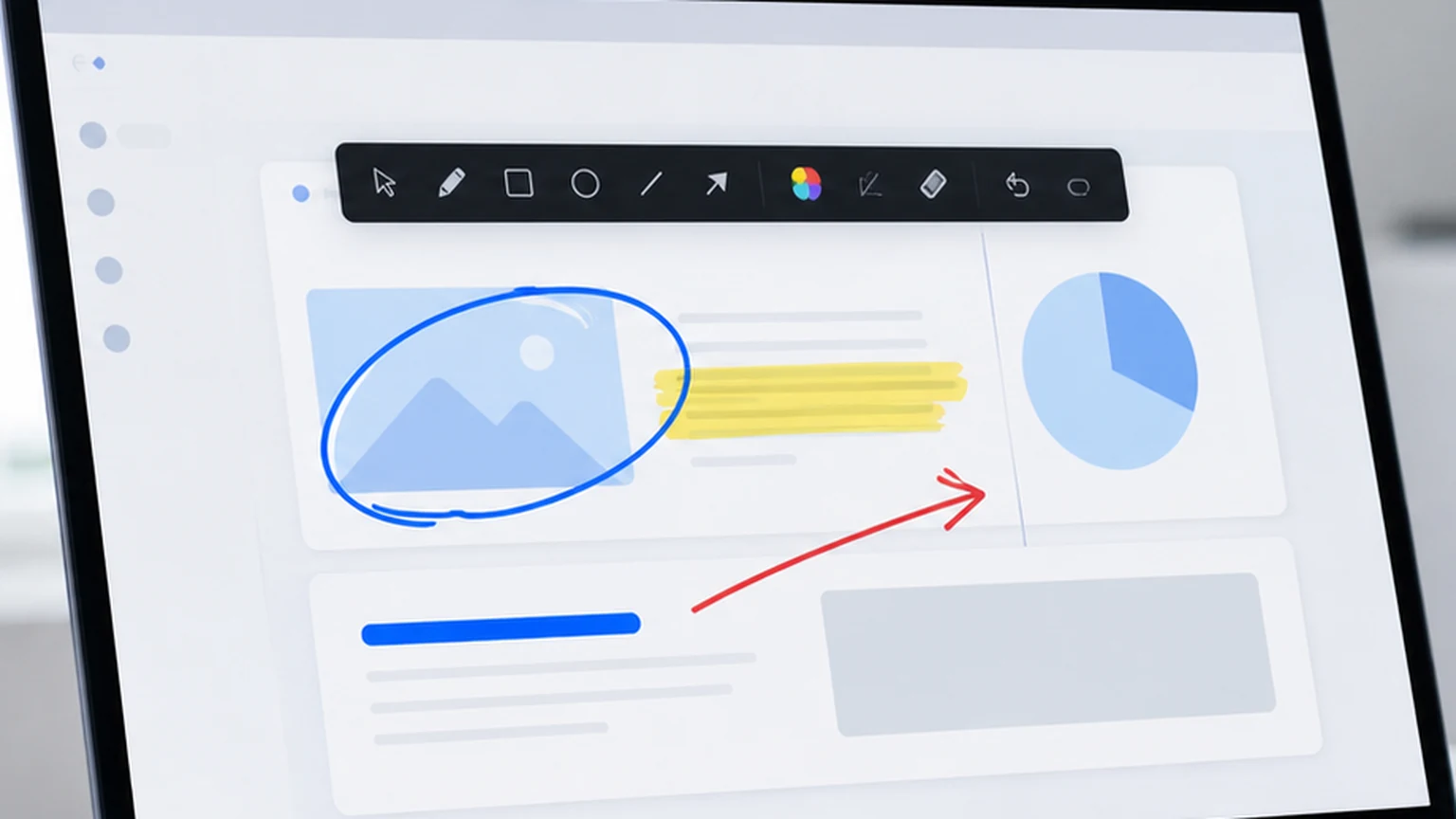
You are about to present in a conference room. The laptop is not yours. It belongs to the venue, or your client, or a colleague who brought it for the meeting. You need to annotate your screen during the presentation, but you cannot install software on this machine. You do not have admin rights. There is no time to download and configure a full application. You need a tool that works right now, from a file you brought with you.
That is the case for a portable screen annotation tool. It runs from a single file with no installation. You carry it on a USB drive, download it to a temporary folder, or copy it from a cloud drive. Double click, and the tool is running. Close it, and there is nothing to uninstall.
This guide covers why portability matters for screen annotation, who benefits from it, and why Penslide was designed as a portable tool from the start.
What Makes an Annotation Tool Portable
Portable software has a specific definition that goes beyond just being free or lightweight. A genuinely portable annotation tool meets these criteria.
No Installer Required
The tool runs directly from its executable file. There is no setup wizard, no license agreement screen, and no progress bar. You double click the file and the app opens. This is the most important characteristic of portable software.
No Admin Rights Required
Installing software on Windows usually requires administrator privileges. On work laptops, school computers, and shared machines, you often do not have those privileges. A portable tool bypasses the entire installation system, so it works regardless of your access level.
No Registry Entries
Traditional Windows software writes to the system registry during installation. This leaves traces on the machine even after uninstallation. A portable app does not touch the registry. It exists as a file, and deleting the file removes it completely.
No Leftover Files
Some apps create configuration files, cache folders, and log files in hidden system directories. A properly portable tool keeps everything self contained. When you delete the .exe, nothing remains on the machine.
Works From Any Location
You can run the tool from your Desktop, a Downloads folder, a USB drive, a network share, or a cloud sync directory. The file does not care where it lives. This flexibility is what makes portable tools practical for people who move between machines.
Why Portability Matters for Screen Annotation
Screen annotation is not always used on your own computer. The situations where portability matters are more common than you might think.
Presenting on Client Machines
Consultants, sales engineers, and trainers often present on machines they do not own. The client's conference room laptop, a shared presentation station, or a machine set up for the meeting. Installing software on a client's machine is usually not acceptable. Bringing a portable tool on a USB drive or downloading it quickly is the practical solution.
Working on Locked Down Work Laptops
Many companies restrict software installation on work devices. IT departments maintain approved software lists, and getting a new tool approved can take weeks. A portable annotation tool that runs without installation sidesteps this restriction entirely. You use the tool when you need it, and IT policy remains intact.
Moving Between Machines
Some professionals use multiple computers throughout the day. A desktop at the office, a laptop in meetings, a shared workstation in a lab. Installing annotation software on each machine is tedious and sometimes impossible. A portable tool on a USB drive works on all of them.
Temporary Use Cases
Sometimes you need annotation for one meeting, one training session, or one support call. Installing software for a single use feels excessive. Downloading a portable .exe, using it for the session, and deleting it afterward is proportional to the need.
Conference and Event Presentations
At conferences, you often present from a venue provided machine. Installing your annotation tool on the venue's computer is impractical and sometimes prohibited. A portable tool that runs from a USB drive is the expected solution in these environments.
How Penslide Works as a Portable Tool
Penslide was designed with portability as a core requirement, not an afterthought. Here is how the portable workflow works.
- Download the .exe file from the download page.
- Save it to any location: Desktop, USB drive, cloud folder, Downloads directory.
- Double click the file to launch. The toolbar appears at the screen edge.
- Annotate your screen: draw, highlight, capture screenshots.
- When done, close the app. No processes remain running.
- If you want to remove it from the machine, delete the .exe file. Done.
There is no account to create, no license to activate, and no configuration to adjust. The tool is ready the moment you open it and gone the moment you close it.
The USB Drive Workflow
One of the most practical uses of a portable annotation tool is carrying it on a USB drive. Here is how to set that up.
Download Penslide to your USB drive. Create a folder called Tools or Annotation if you want to keep things organized. Copy the .exe into that folder. That is the entire setup.
When you arrive at a presentation, plug in the USB drive. Open the folder. Double click the .exe. Penslide launches, and you are ready to annotate. The machine does not need any software installed, and you do not need admin rights.
After the presentation, close Penslide and remove the USB drive. Nothing remains on the host machine. No registry entries, no temp files, no configuration fragments.
This workflow is especially valuable for consultants and trainers who visit different offices every week. You carry your tool kit with you, and it works everywhere.
Portable vs. Installed Annotation Tools
There are tradeoffs between portable and installed software. Understanding them helps you decide which approach fits your situation.
Startup Integration
Installed tools can configure themselves to launch at Windows startup, sit in the system tray, and be available instantly. Portable tools require you to open them manually. For most annotation use cases, this is not a problem because you open the tool when you need it, not as a permanent background process.
System Tray Presence
Some installed tools maintain a system tray icon for quick access or hotkey activation. Portable tools typically do not have a persistent tray presence. Penslide shows a floating toolbar when running, which serves the same purpose during an active session.
Updates
Installed tools can auto update. Portable tools require you to download the new version manually. For a tool as simple as a screen annotator, updates are infrequent and the download is small, so this is a minor tradeoff.
Clean Up
Installed tools require an uninstallation process that may leave residual files. Portable tools are removed by deleting the file. If you value a clean system, portability is a clear advantage.

Who Benefits Most From Portable Annotation
- Consultants who present on client machines and cannot install software.
- Teachers who use school computers or shared classroom machines.
- IT support technicians who troubleshoot on customer workstations. See the remote support annotation guide for this workflow.
- Conference speakers who present from venue provided equipment.
- Employees on locked down work laptops where IT controls software installation.
- Freelancers who work from coworking spaces and shared office setups.
- Students who need annotation on university lab computers.
The common thread is that these people do not always control the machine they are using. Portable software is the only kind that works reliably across all of these environments.
Common Questions About Portable Software Safety
People sometimes wonder whether portable executables are safe to run. This is a reasonable concern, and here is the context.
Any software you download from the internet should come from a trusted source. Penslide is available from its official website. The download is a standard Windows executable that runs on Windows 10 and 11.
Windows Defender and corporate antivirus software may scan unfamiliar executables when you first run them. This is normal behavior for any downloaded file. The scan completes quickly, and the tool runs after approval.
On corporate machines with strict security policies, check with your IT department if you are unsure about running portable software. Most policies allow portable tools that do not install system services or modify system files.
Combining Portability With Other Annotation Needs
Portability does not mean limited. Penslide includes the same annotation features whether you run it from a USB drive or from your Desktop.
- Freehand pen for circles, arrows, and marks.
- Highlighter for text, rows, and paragraphs.
- Color selection for matching your marks to the content background.
- Undo for removing the last stroke.
- Clear for wiping all annotations at once.
- Screenshot for capturing your annotated screen.
The full feature list is available on the homepage. The tool does not lose functionality because it is portable; it gains flexibility because it can run anywhere.
For more on lightweight annotation approaches, see the desktop annotation software guide. For drawing techniques, the drawing on screen in Windows guide covers the basics.
FAQ
Can I run Penslide from a USB drive?
Yes. Copy the .exe file to your USB drive and double click it on any Windows 10 or 11 machine. The tool runs directly from the USB with no installation required.
Does a portable annotation tool leave files on the computer?
Penslide is designed to run self contained. When you close the app and delete the .exe file, nothing remains on the machine. There are no registry entries, no configuration files, and no cache folders.
Do I need admin rights to run a portable tool?
No. Portable tools like Penslide run without admin privileges. You can use them on locked down work laptops, school computers, and shared machines where software installation is restricted.
Is a portable tool as capable as an installed one?
For annotation, yes. Penslide offers the same features whether you run it from a USB drive or from your Desktop: pen, highlighter, colors, undo, clear, and screenshot. The only difference is that it does not auto launch at startup, which is rarely needed for annotation tools.
Conclusion
Portability is not a nice to have feature for screen annotation. It is a practical requirement for anyone who works on more than one machine, presents in environments they do not control, or uses a work laptop with restricted installation rights.
Penslide is portable by design. One .exe file, no installer, no admin rights, no leftover files. You carry it on a USB drive, download it to a temporary folder, or keep it in your tools directory. It works the same everywhere: fast, clean, and ready the moment you need to annotate.
Get Started
Download Penslide from the download page and save it to your USB drive or preferred location. Visit the homepage for the full product overview and features. For related guides, read the Windows annotation software guide or the free screen annotation tool comparison.
Use Penslide with the next screen share
Open Penslide, point to the part of your screen you need, and draw in a way that keeps the audience on the same page. It works with slide decks, browser windows, and shared apps.