PenSlide for Mac is Now Available
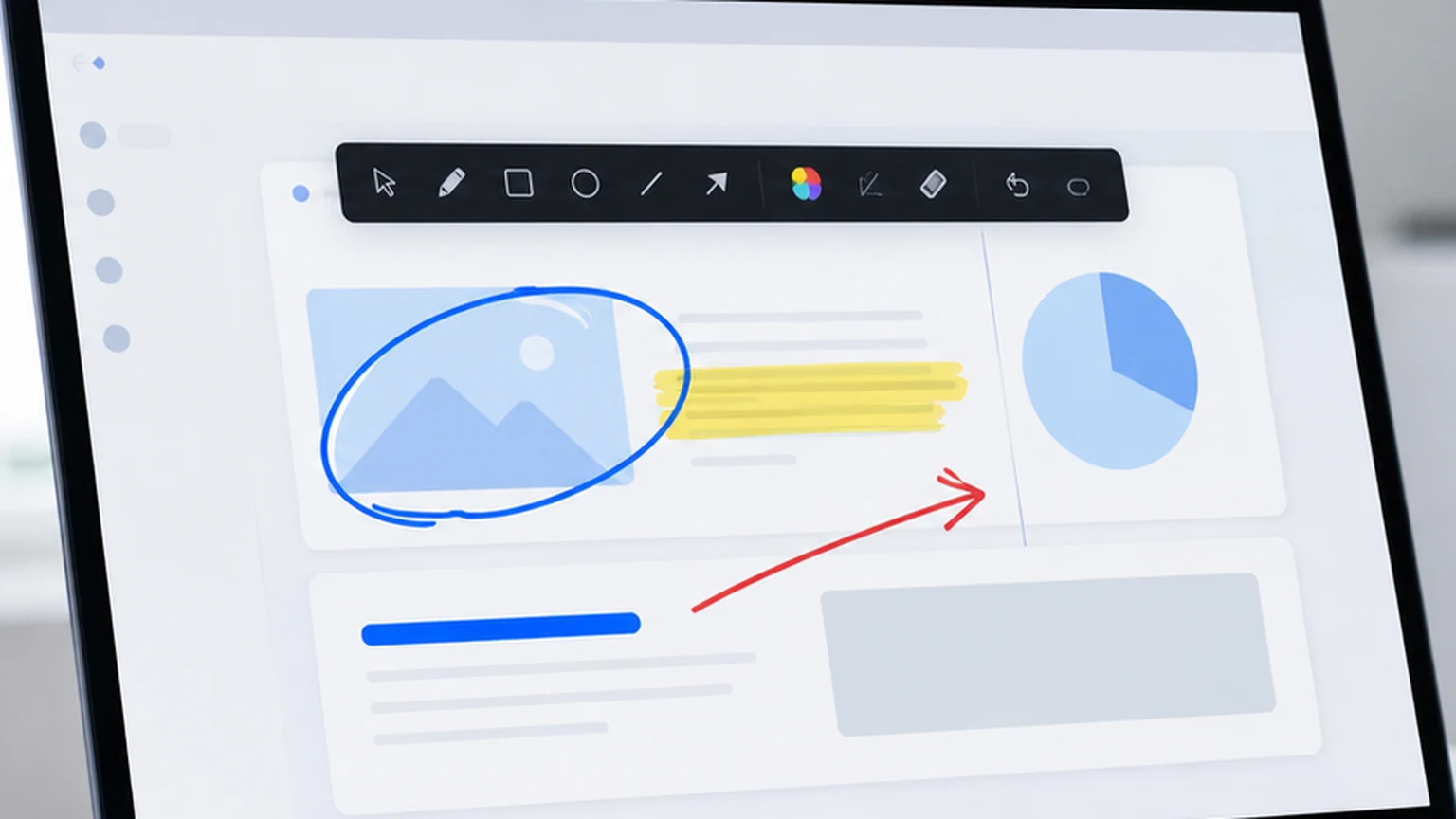
PenSlide for Mac is now available. This is a big step for anyone who wants a simple way to draw on screen while using macOS. Until now, many people found PenSlide while looking for a lightweight screen annotation tool for Windows. Now Mac users can download PenSlide too, use it on macOS 11 or later, and keep the same kind of simple workflow for live explanation.
If you use a Mac for teaching, product demos, support calls, online lessons, or recorded tutorials, this release is for you. You can download the Mac version from the main download page. You can also visit the new PenSlide for Mac page to learn about macOS support and installation.
Why Mac support matters
A lot of clear communication happens on screen. A teacher may need to circle a formula during an online lesson. A support person may need to point to a button during a remote call. A trainer may need to highlight one line in a slide deck. A founder may need to walk through a dashboard during a product demo. In each case, the problem is simple. The person watching needs to know exactly where to look.
Screen annotation solves that problem. You draw directly over the thing you are explaining. You add a quick arrow, underline a sentence, highlight a chart, or mark a button. Instead of saying "look near the top right area", you show the exact place. That saves time and makes the whole conversation feel calmer.
Many Mac users do this kind of work every day. They teach from MacBooks, run meetings on iMacs, edit tutorials on Mac Studio machines, and host calls from macOS. That is why adding macOS support matters. PenSlide is no longer just a Windows screen annotation tool. PenSlide is now available for Windows and macOS.
What PenSlide does on macOS
PenSlide gives you a small set of tools for explaining what is on your screen. You can draw freehand, highlight important areas, point with arrows, add simple shapes, clear the screen, and keep your presentation moving. The idea is not to replace your slides, meeting app, browser, code editor, or whiteboard. The idea is to sit above the work you are already doing and help you explain it.
That is useful because most people do not want a heavy app when they are already presenting. They do not want to stop the meeting, open a new canvas, import a screenshot, and then explain the screenshot instead of the live screen. They want to mark the real screen in front of them. PenSlide is built for that kind of moment.
On macOS, PenSlide is designed for macOS 11 or later. You download the DMG file, open it, drag PenSlide to Applications, and then open it from Applications. If macOS asks for screen recording or accessibility permission, allow the permission so PenSlide can work correctly over your screen.
Built for Windows and macOS
PenSlide now supports both major desktop platforms that many teams use every day. Windows users can download the Windows version from the download page. Mac users can download the Mac DMG from the same download page. The PenSlide homepage now also makes this clear near the top of the page, so visitors and search engines can understand that PenSlide is available for both Windows and macOS.
This is important for mixed teams. A teacher may use a Mac while students use Windows laptops. A support team may have both Windows and Mac staff. A training company may record on one platform and present on another. When a tool is available for both Windows and macOS, it becomes easier to recommend across the whole team.
The goal is simple consistency. If someone asks, "Can I use PenSlide on Mac?", the answer is yes. If someone asks, "Can I use PenSlide on Windows?", the answer is also yes. PenSlide is a free screen annotation tool for Windows and macOS.
Common ways to use PenSlide for Mac
Teachers can use PenSlide during live classes. When a student asks about a phrase, formula, chart, or diagram, the teacher can highlight it right away. That small visual cue can make the answer easier to follow.
Trainers can use PenSlide during software demos. Instead of moving the mouse around and hoping everyone follows, they can draw an arrow to the exact control or mark the field that needs attention. This is helpful when the screen is busy.
Support teams can use PenSlide when explaining steps to customers. A quick circle around a menu item can remove confusion. A line under an error message can make the problem easier to describe. Clear visual guidance is often faster than a long spoken explanation.
Creators can use PenSlide while recording tutorials. If a video needs a quick note, highlight, or pointer, PenSlide can make the recording easier to understand. Viewers do not need to guess where the important action is happening.
How to install the Mac version
The Mac install process is short. Go to the PenSlide for Mac page and download the DMG file. Open the DMG after it finishes downloading. Drag PenSlide to Applications. Then open PenSlide from Applications.
Depending on your Mac settings, macOS may ask for screen recording or accessibility permission. This is normal for screen tools. PenSlide needs permission so it can work correctly over your screen. If a permission prompt appears, follow the macOS instructions and allow access for PenSlide.
Why keep the tool lightweight
Many screen tools try to become full whiteboard suites. That can be useful for some jobs, but it can also get in the way. During a live lesson or meeting, speed matters. You want to point, draw, explain, and continue. You do not want to manage layers, documents, templates, or a large project file.
PenSlide keeps the focus on quick screen annotation. The tool is there when you need it and quiet when you do not. That is the main reason people use it for presentations, tutorials, support, and teaching. The feature set is practical because the job is practical.
Download PenSlide for Mac
You can download the Mac release now from the main download page. If you are on Windows, use the same download page to get the Windows version. If you want a quick overview of what the tool does, start from the homepage, or read the PenSlide for Mac page for macOS details.
PenSlide is free to use on Mac and Windows. It is made for people who want a simple way to draw on screen, highlight details, annotate live content, explain steps, and present clearly.
FAQ
Is PenSlide available for Mac?
Yes. PenSlide is now available for macOS. You can download the Mac version from the PenSlide for Mac page.
Which macOS version does PenSlide support?
PenSlide for Mac supports macOS 11 or later.
Is PenSlide still available for Windows?
Yes. PenSlide is available for Windows and macOS. Windows users can download the Windows version from the main download page.
Is PenSlide free on Mac?
Yes. PenSlide is free on Mac, just like it is on Windows.
Does PenSlide need macOS permissions?
macOS may ask for screen recording or accessibility permission so PenSlide can work correctly. If that happens, allow the permission in macOS settings.
Use Penslide with the next screen share
Open Penslide, point to the part of your screen you need, and draw in a way that keeps the audience on the same page. It works with slide decks, browser windows, and shared apps.